
6. Accounting: chart, periods, ledger and reports
6.1 Chart of accounts
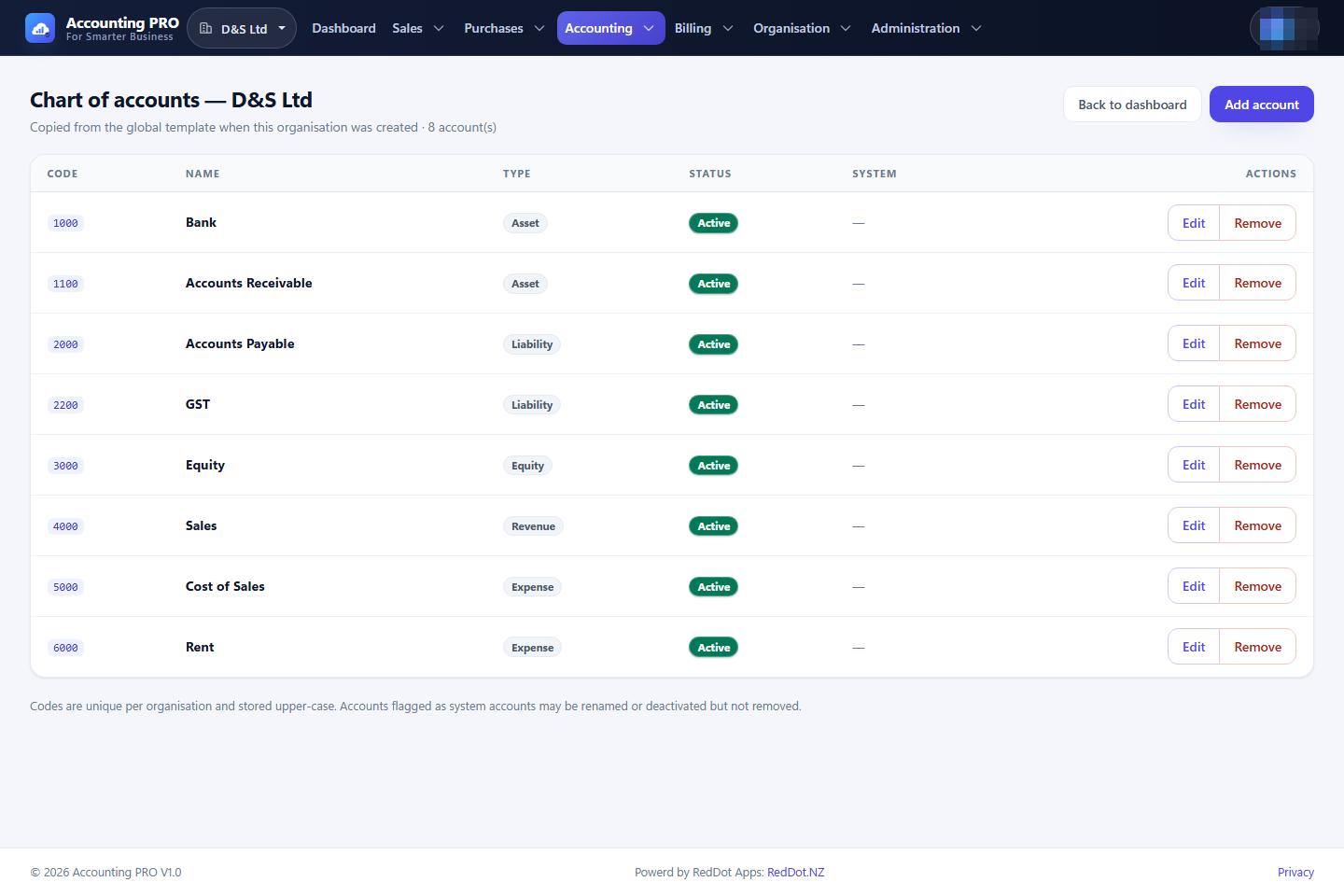
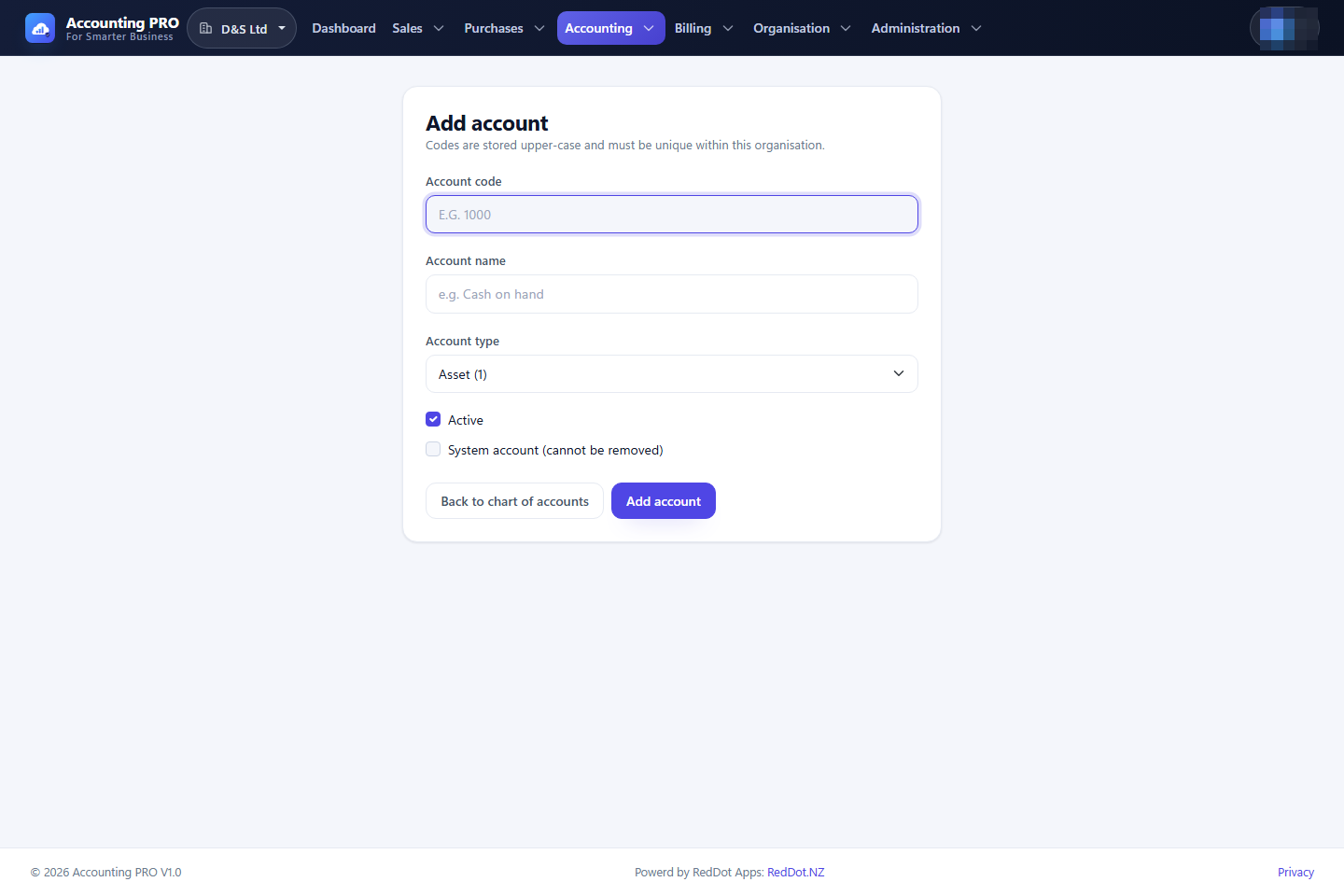
The chart of accounts is the list of ledger accounts every posting points at. Each account has a code, a name, a type (Asset, Liability, Equity, Income or Expense), an active flag and, for the standard accounts, a protected “system account” flag.
- Open Accounting → Chart of accounts.
- Select Add account to create an account, or a row to edit it.
- Codes are unique within the organisation. Keep the numbering convention (for example 1000 Bank, 1100 Receivables, 2000 Payables, 2200 GST, 4000 Sales, 5000 Cost of sales, 6000 Expenses).
- Deactivate an account to remove it from pickers without breaking history.
The organisation's default accounts — sales, expense, receivables and payables — are chosen in Organisation → Settings. New organisations receive a chart copied from an account template; a global administrator maintains those templates under Administration → Account templates.
6.2 Financial periods
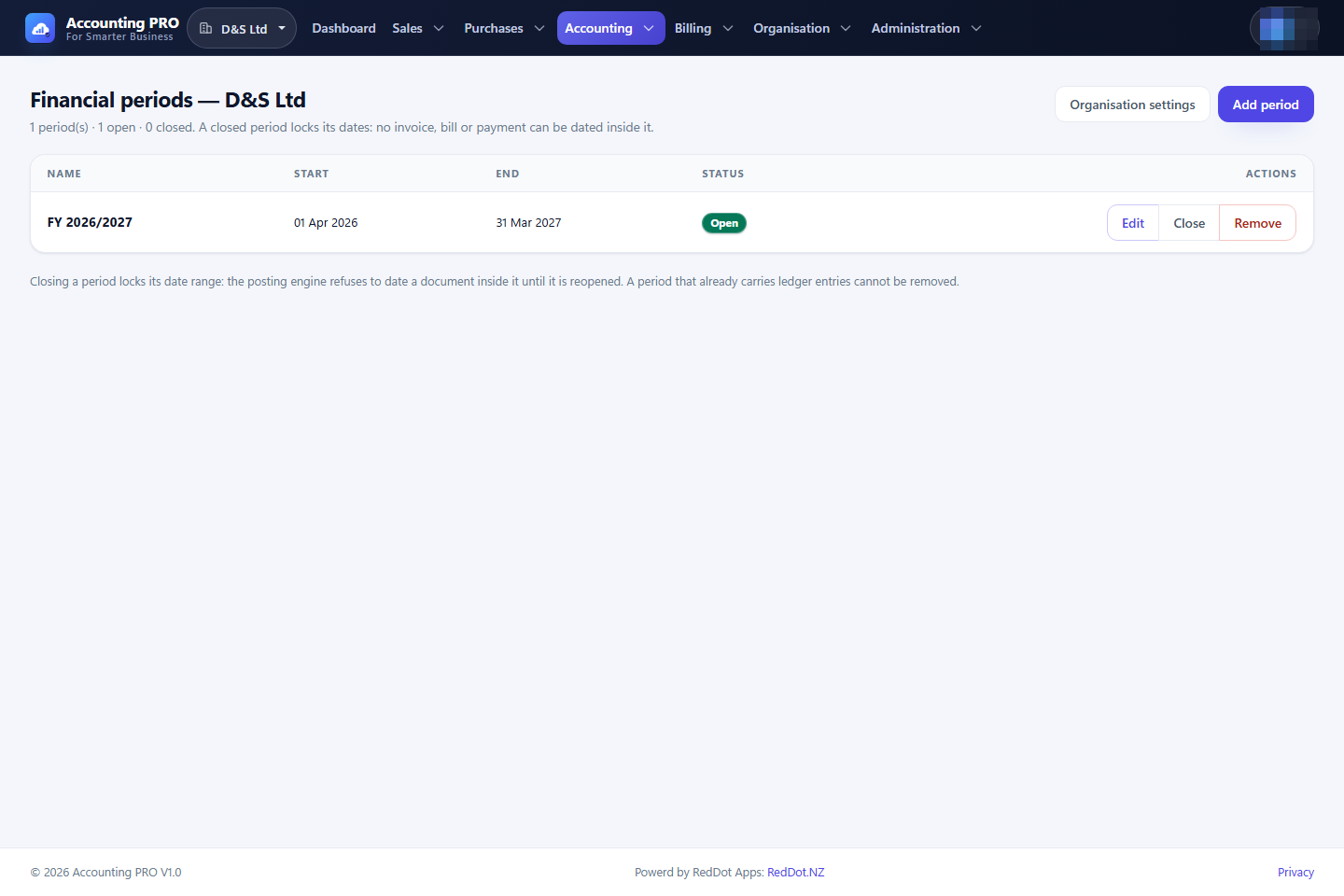
A financial period is a date range used to decide whether a posting is allowed. Closing a period locks it; no document or journal can be posted into a closed period.
- Open Accounting → Financial periods.
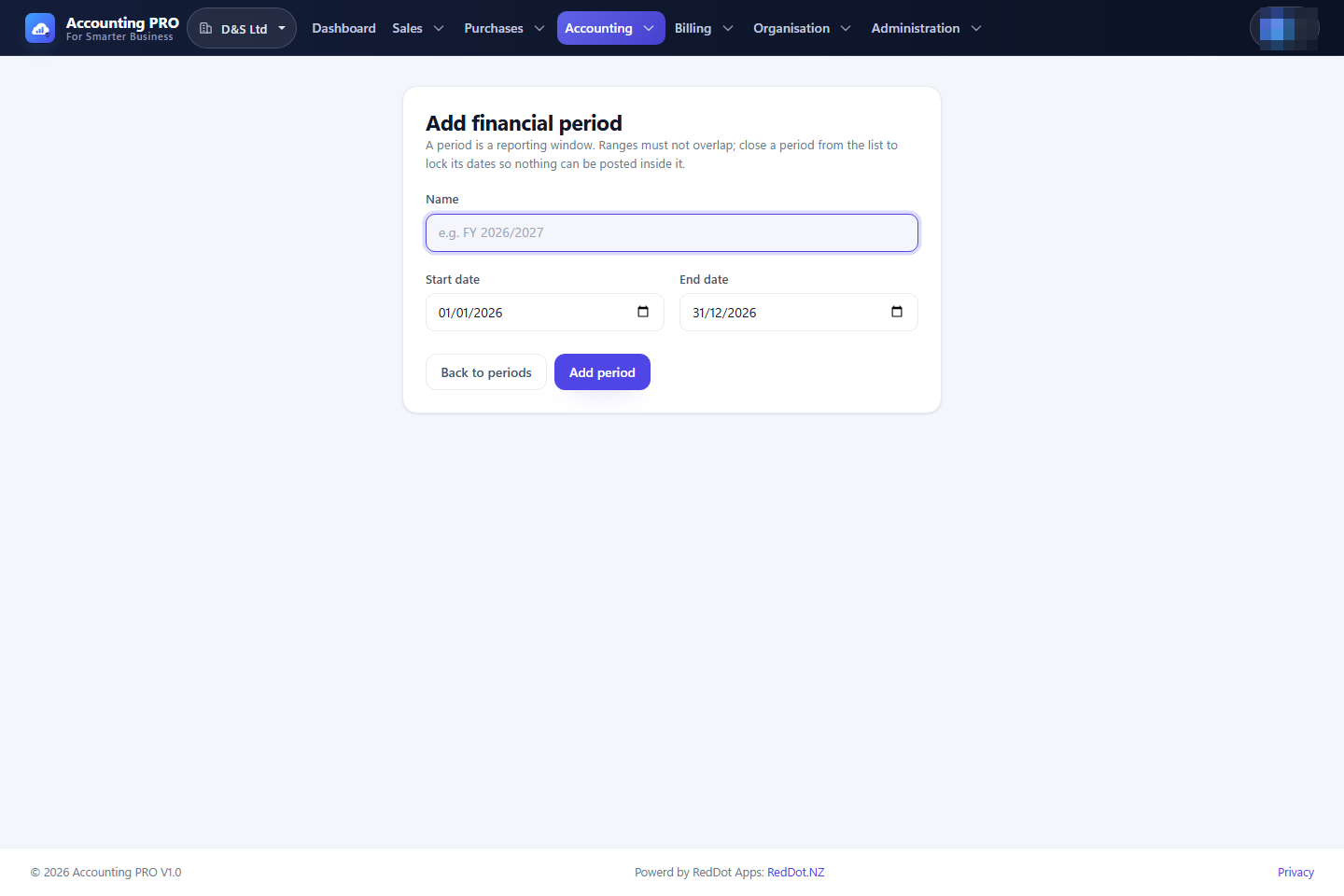
- Select Add financial period, enter a name and the start and end dates.
- Use Close to lock a period and Reopen to unlock it. A period that is still open can be deleted.
- Only Owner, Administrator and Accountant can manage periods; other roles may view them.
The organisation's financial-year start month (April by default) decides the default reporting period on the reports. Create the periods you intend to close before you start posting.
6.3 Year-end close
Closing a financial year is more than locking a period: it carries the year's result into retained earnings, opens the next year's period and locks the year. The wizard is behind Accounting → Financial periods → Year-end close (https://accounting.reddot.nz/FinancialPeriods/YearEnd).
- Open Accounting → Financial periods and select Year-end close. The hub lists every financial year with its result, the retained earnings it brings forward and what it carries forward, and says whether it has been closed.
- Select Review & close on the year to close. The review screen shows the pre-close checks and the exact journal entry that will be written.
- Fix anything that fails a check — a year can only be closed once its periods cover it from its first to its last day, the year has ended, the year is not already closed and its periods are open. Draft documents that have not been posted yet are reported as a warning.
- Tick the two options (both on by default): open a period for the year that follows and lock the year's periods. Then select Close.
- The result screen shows what was written: the carry-forward entry, the periods that were locked and the period opened for the next year.
What the close writes is one entry, dated the last day of the year:
| Account | Debit | Credit |
|---|---|---|
| Every revenue account the year moved | the balance it carries | |
| Every expense account the year moved | the balance it carries | |
| 3100 Retained Earnings | the year's profit (or debit, if a loss) |
The retained-earnings account (3100) is created by the close if the chart of accounts does not have it yet, so the result of a year is never lost.
What the reports show afterwards. The profit & loss and the cash flow leave the carry-forward entry out, so a closed year still reports the revenue and expenses it earned. The trial balance, the balance sheet and the general ledger include it: the year really was carried forward, and the balance sheet shows the accumulated result as retained earnings.
Reopening a year. Open the close from the hub and select Reopen the year. The year's periods are unlocked and the carry-forward entry is reversed (the ledger keeps both entries, so the correction stays auditable), and the year can be closed again — the figures do not double.
Only Owner, Administrator and Accountant can close or reopen a year (Close a financial year permission).
6.4 General ledger and journals
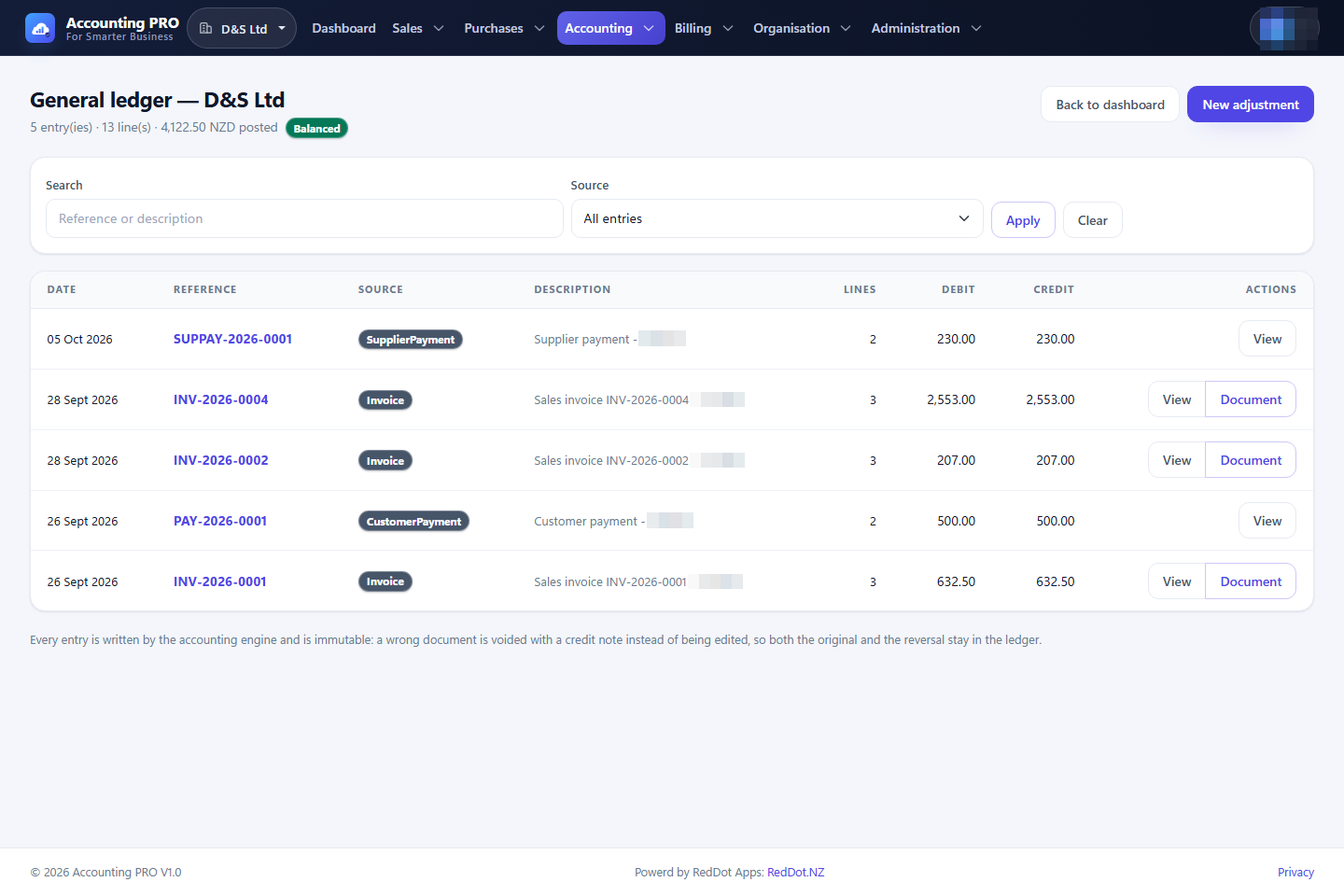
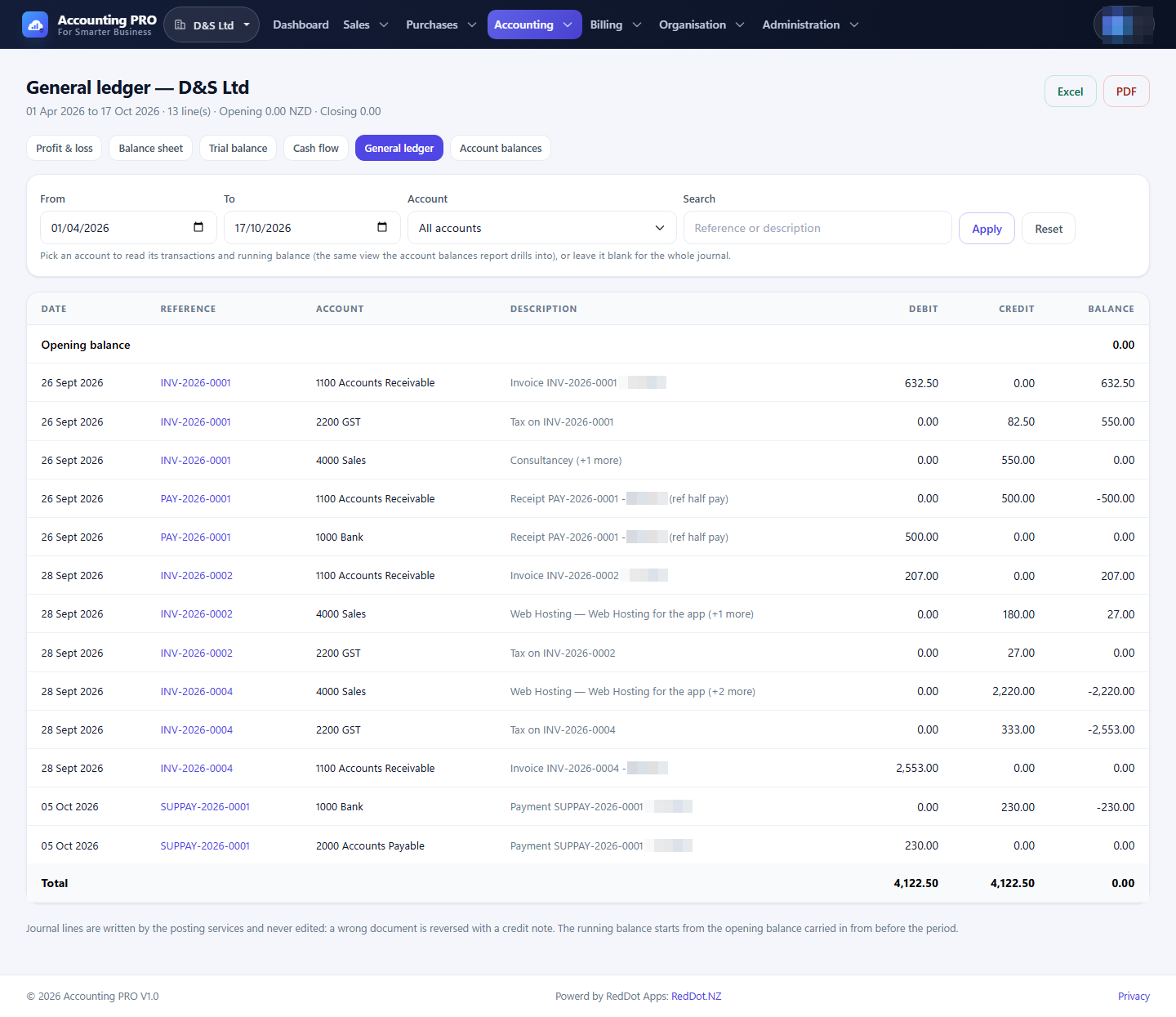
Accounting → General ledger is the journal of everything that has reached the books. It is read-only: entries are written by documents, receipts, payments, bank matches and manual journals.
- Filter by date, reference, description or account.
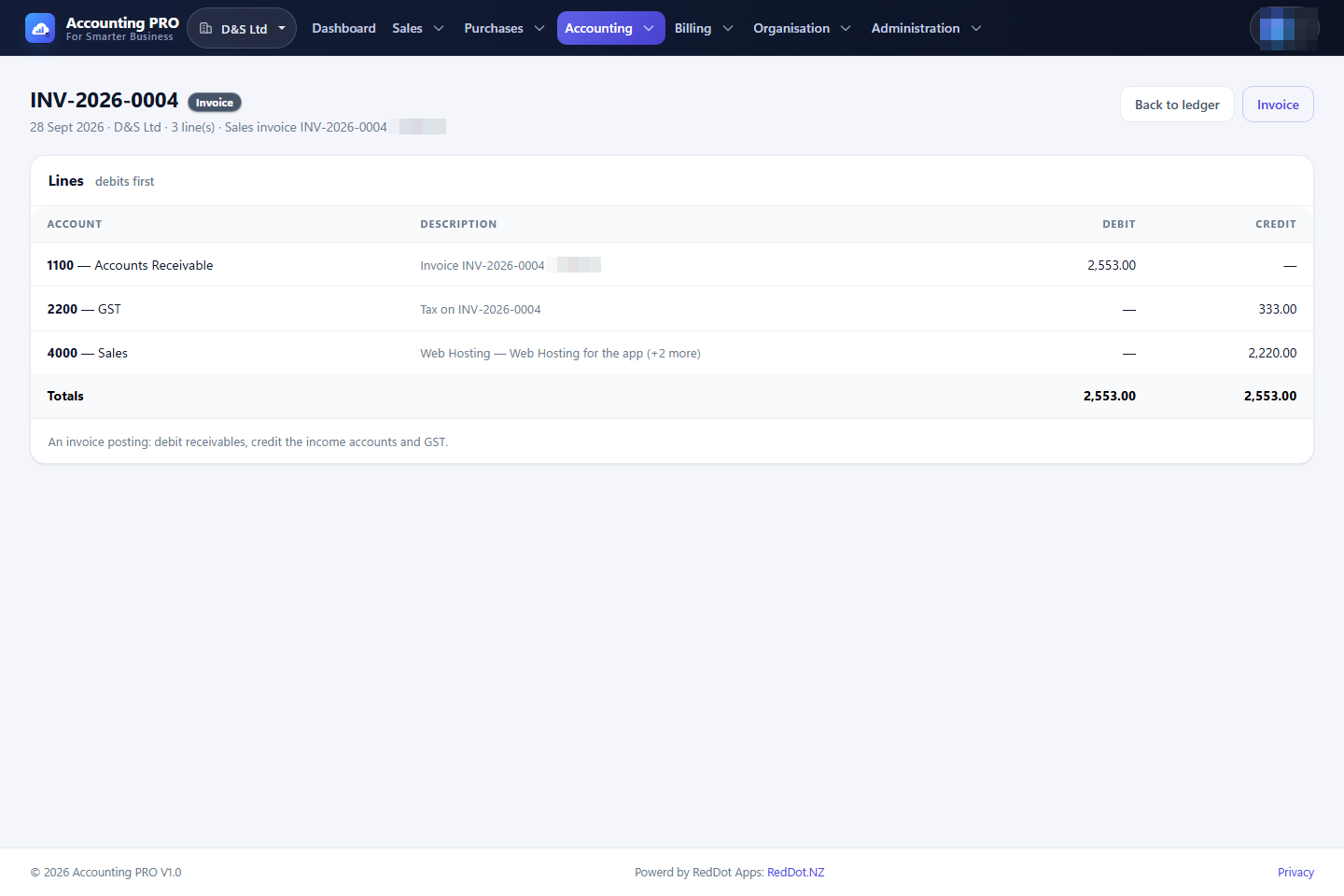
- Open an entry to see its lines, debits, credits and source document.
- Source types include Invoice, Customer payment, Bill, Supplier payment, Bank transaction, Credit note and Manual.
- The Source filter also offers Opening balances and Reversals, which are the two kinds of entry kept apart from ordinary activity.
- A row that has been corrected is marked Reversed, and the reversal itself is marked Reversal; the opening journal is marked Opening balance.
6.5 Post a manual adjusting journal
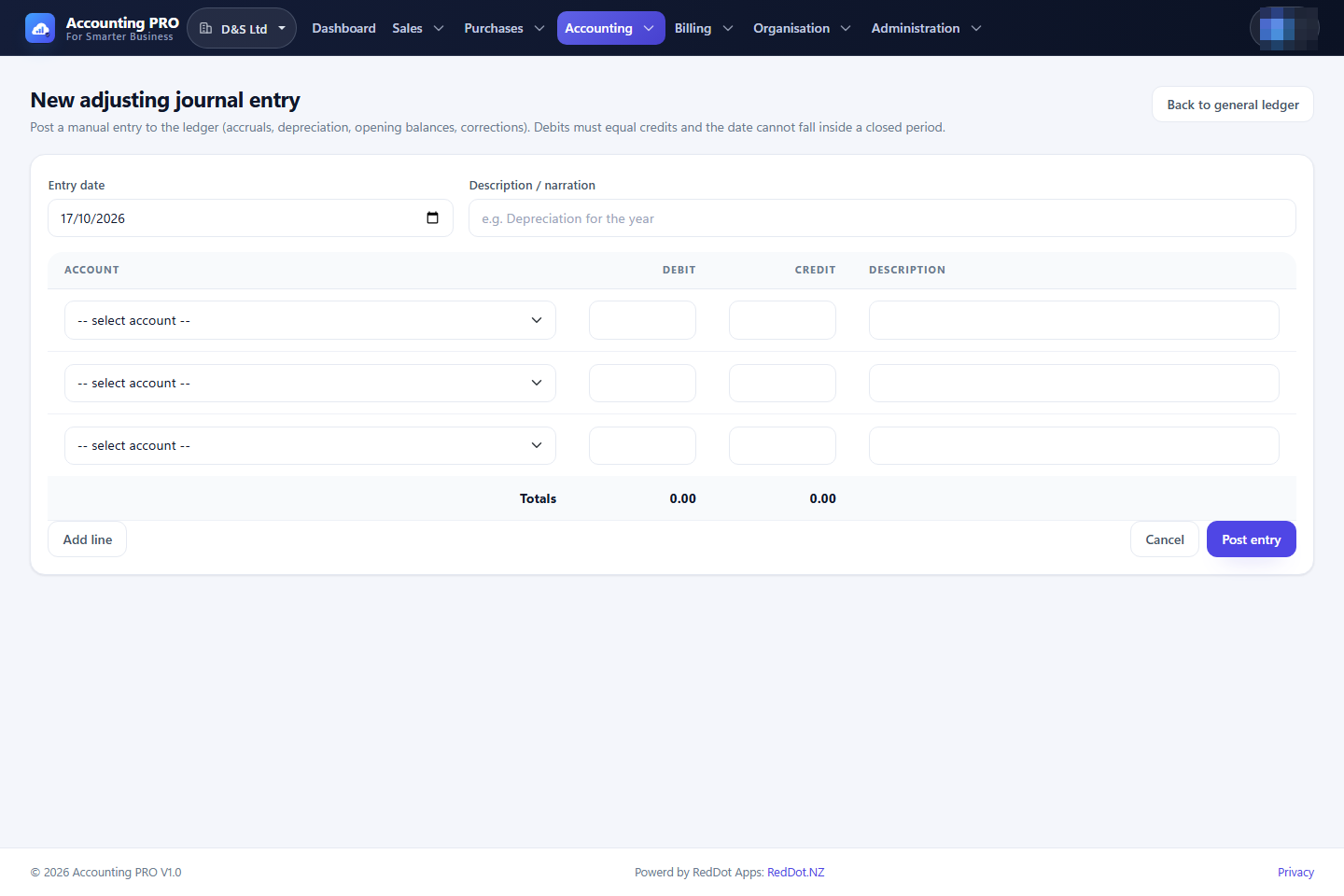
Manual journals cover accruals, depreciation, corrections and opening balances. The screen asks what the entry is: an adjusting entry or the opening balances the books start from.
- Open Accounting → General ledger and select New journal.
- Choose the entry type (adjusting entry, or opening balances), enter the entry date and a description / narration.
- Add at least two lines: choose an account, then enter a debit or a credit and an optional line description.
- Use Add line for more lines. The totals at the bottom must be equal.
- Select Post entry.
The entry is written immediately and cannot fall inside a closed period. Only
Owner, Administrator and Accountant have the Journals.Create permission.
An organisation opens its books once, so it may hold only one opening balance. The screen names the entry it already has and refuses a second one - posting it twice would double every balance it touches. To replace the balances, reverse the existing entry first (see below) and post the corrected one.
6.6 Reverse a posted journal entry
A posted entry is never edited or deleted. When it is wrong it is reversed: the ledger gets a mirror entry - the same lines, debit for credit - that points back at the entry it corrects, and both stay readable.
- Open the entry from Accounting → General ledger.
- Select Reverse.
- Check the report: the entry being reversed, every precondition (the period is open, the entry has not been reversed yet, it was not written by a document) and the exact mirror rows that will be written.
- Enter a reason and select Reverse entry.
What the ledger does:
- the original keeps its reference, its lines and its amounts, and is marked Reversed;
- the reversal is a new entry numbered in the JE series, marked Reversal and linked to the original;
- the two entries cancel out, so every report and the trial balance read the corrected position;
- the reversal is recorded in the audit log with the reason.
An entry is reversed once - a reversal is never itself reversed, so post a
new adjustment if something further needs correcting. An entry written by a
document (an invoice, a receipt, a bill, a payment, a credit note) is refused
here: void or reverse the document on its own screen instead, so the document
and the ledger move together. Only Owner, Administrator and Accountant have the
Journals.Reverse permission.
6.7 Financial reports
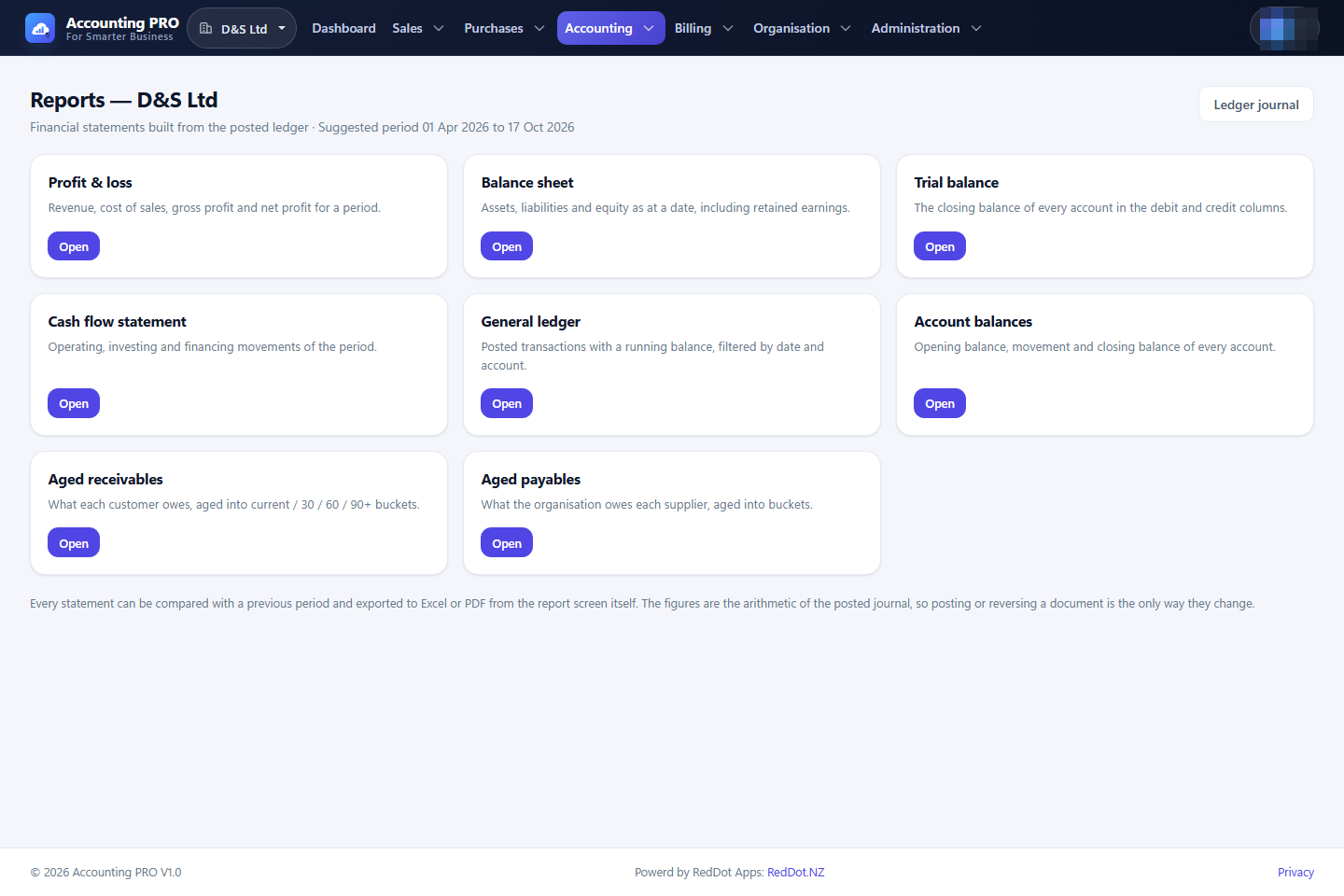
Open Accounting → Reports for the report hub. Every report reads the posted ledger, so the figures agree with the trial balance and the GST return. Each report has a date filter, an optional comparison period and Excel and PDF export buttons.
| Report | What it shows |
|---|---|
| Profit & loss | Revenue less cost of sales (gross profit) less operating expenses (net profit) for a period. Accounts coded 5xxx are treated as cost of sales; other expenses are operating expenses. |
| Balance sheet | Assets, liabilities and equity as at a date, including retained earnings. The report checks that assets equal liabilities plus equity. |
| Trial balance | The closing balance of every account that moved, in debit and credit columns, with a balanced check. |
| Cash flow | An indirect-method cash flow statement split into operating, investing and financing activities, reconciling to closing cash. |
| General ledger | Posted lines with a running balance, filterable by account and search text. |
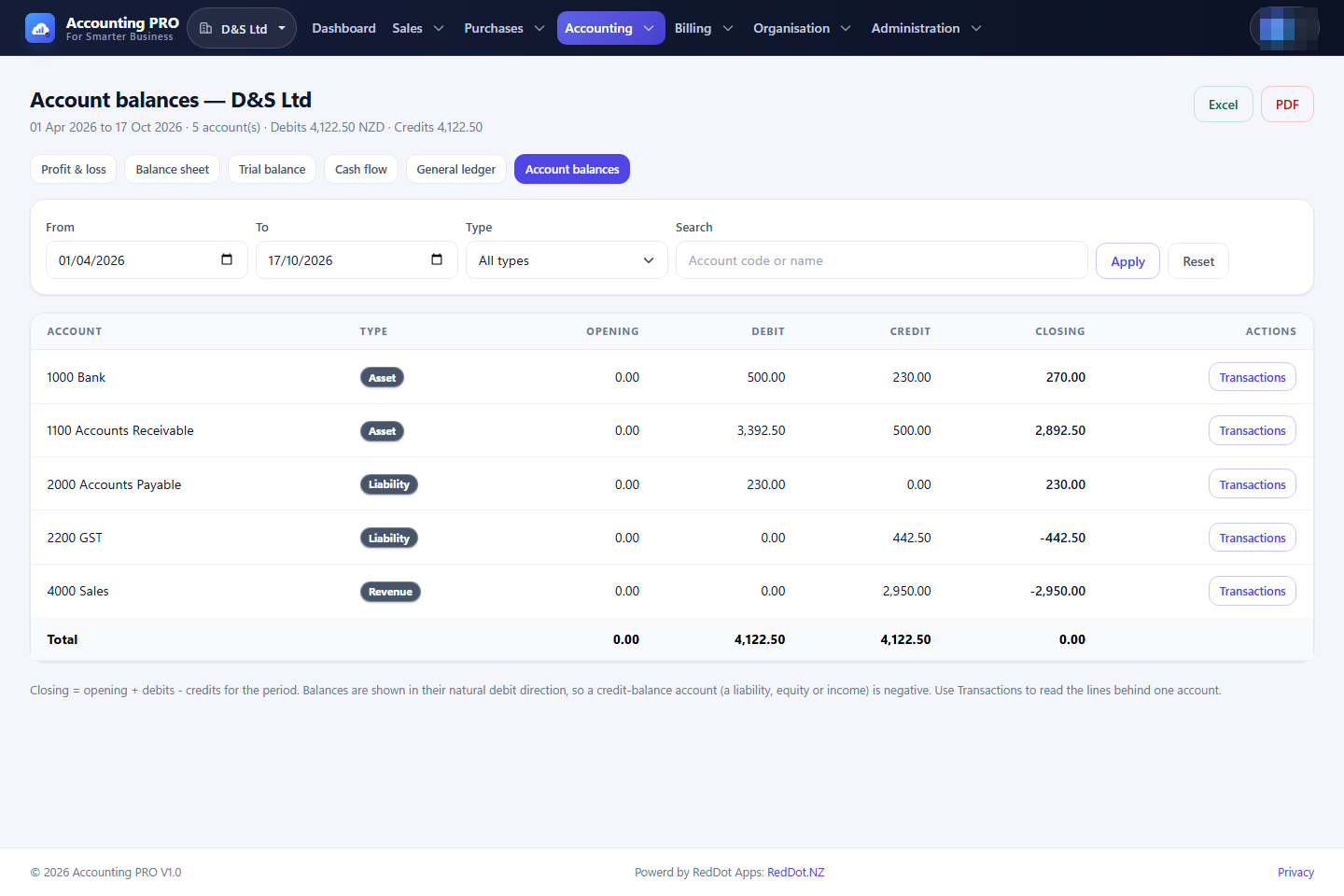
| Account balances | Opening balance, movement and closing balance for each account over a period. |
The Reports module is the Advanced reports subscription feature and requires
the Reports.View permission.
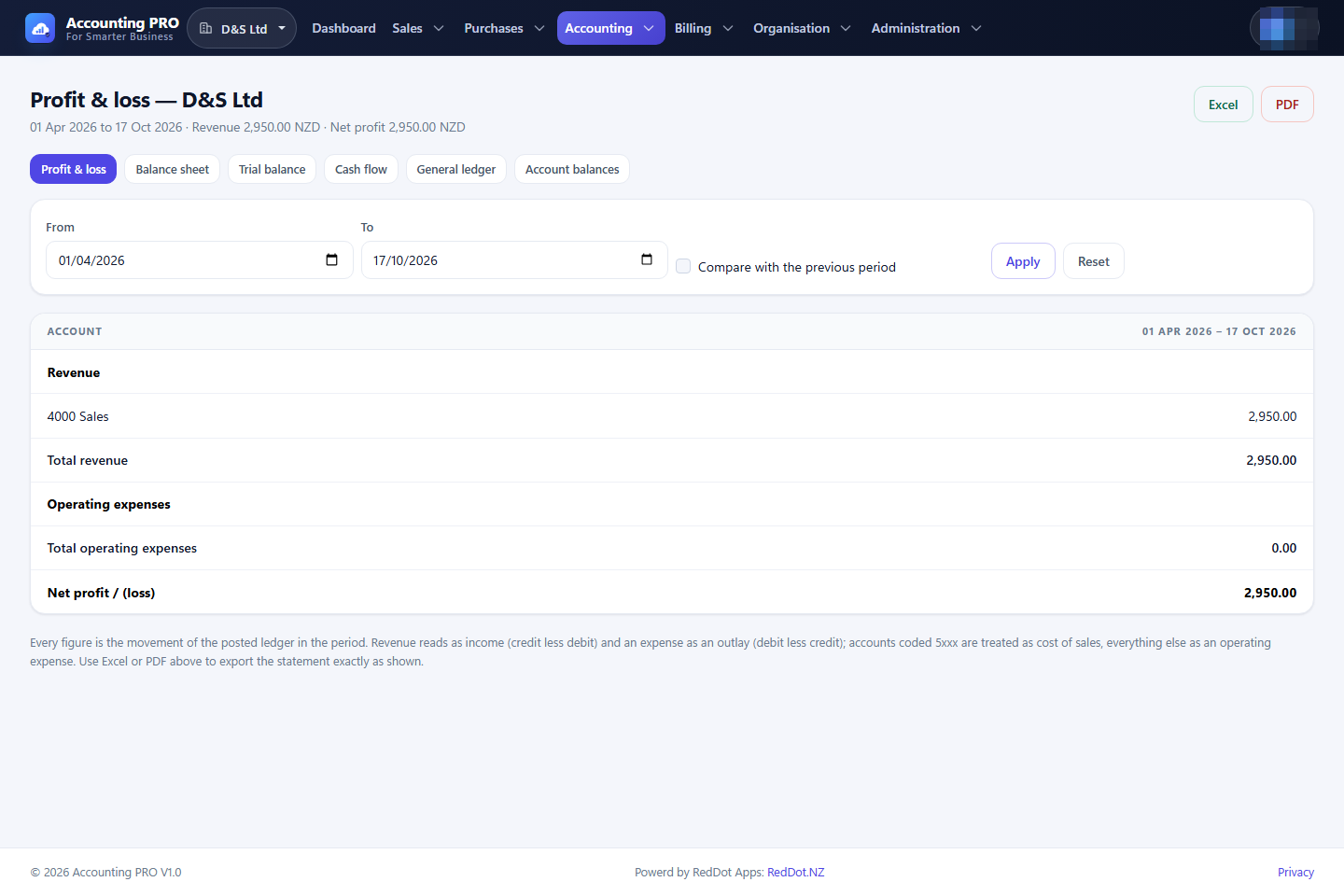
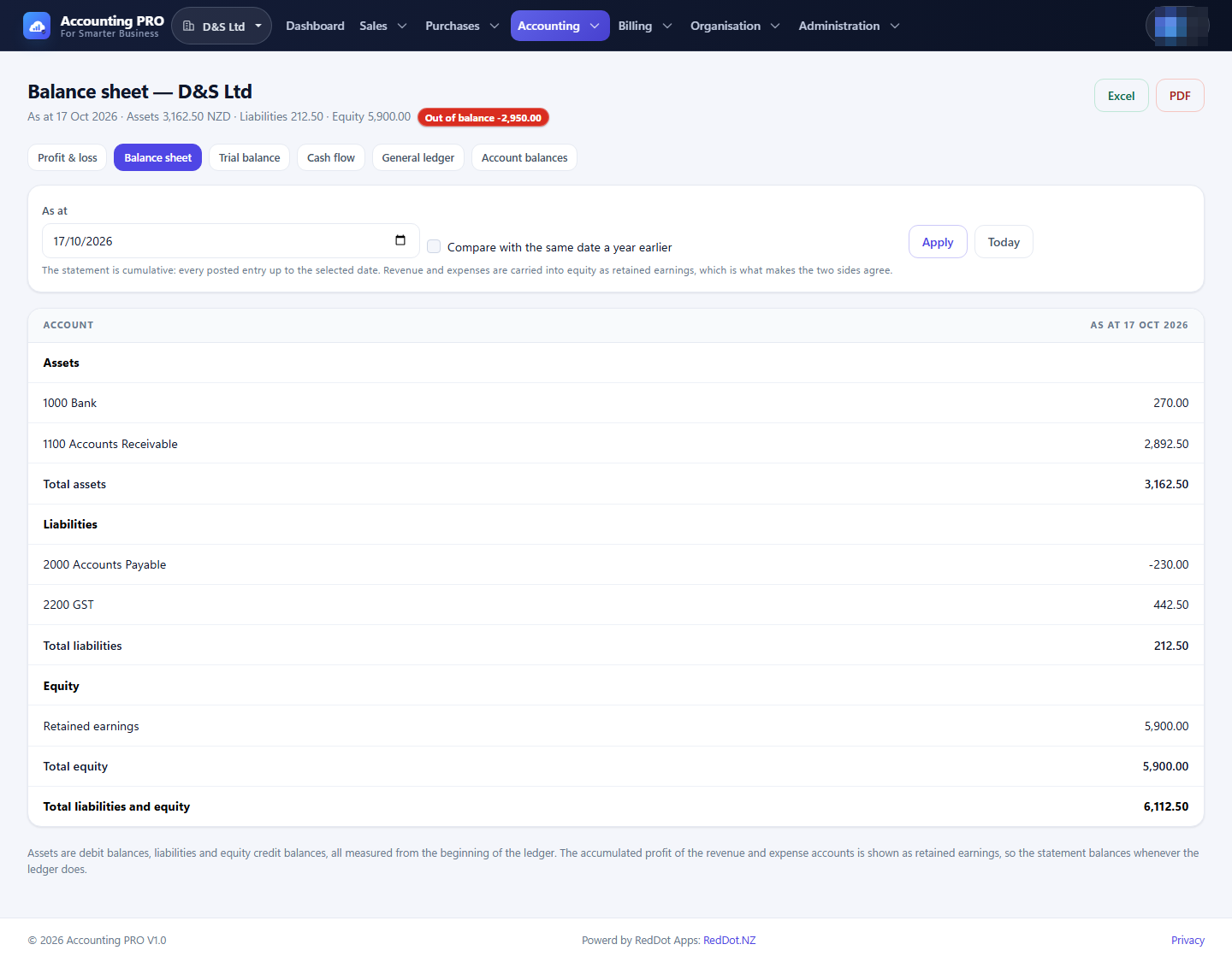
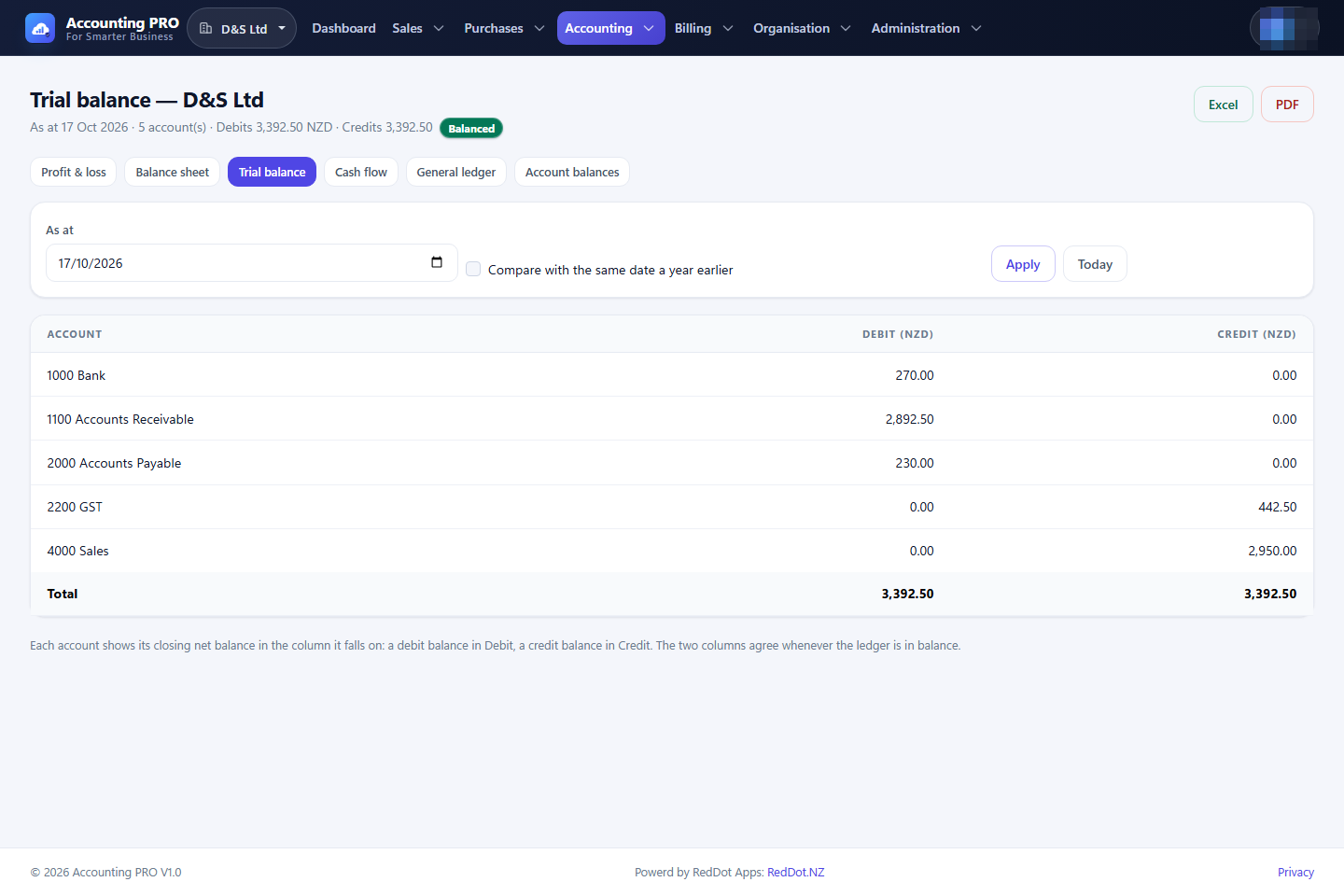
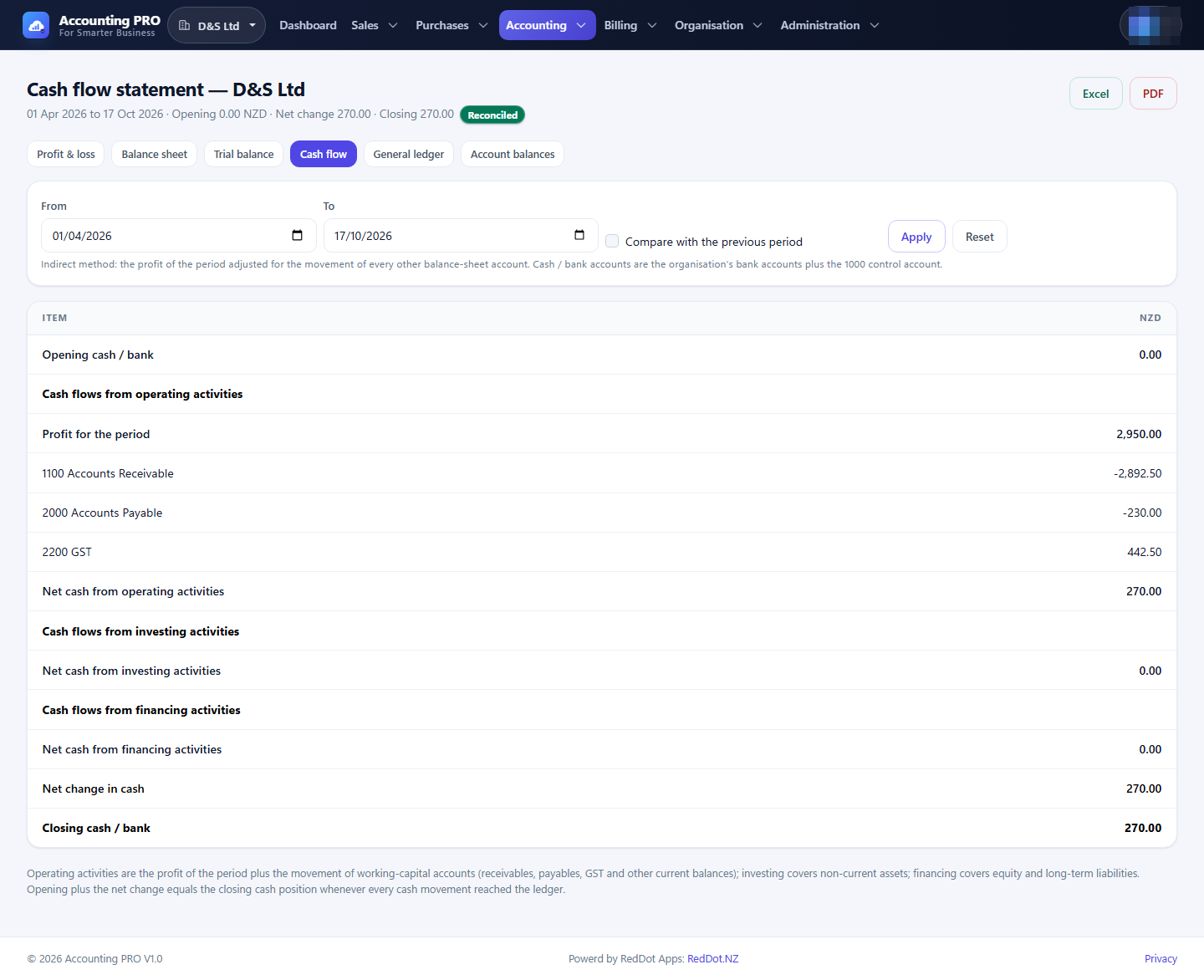
Tip: Tick Compare with the previous period (or the equivalent on the balance-sheet reports) to add comparison columns and a variance column to profit & loss, balance sheet, trial balance and cash flow.