
9. Organisation administration
9.1 Organisation settings
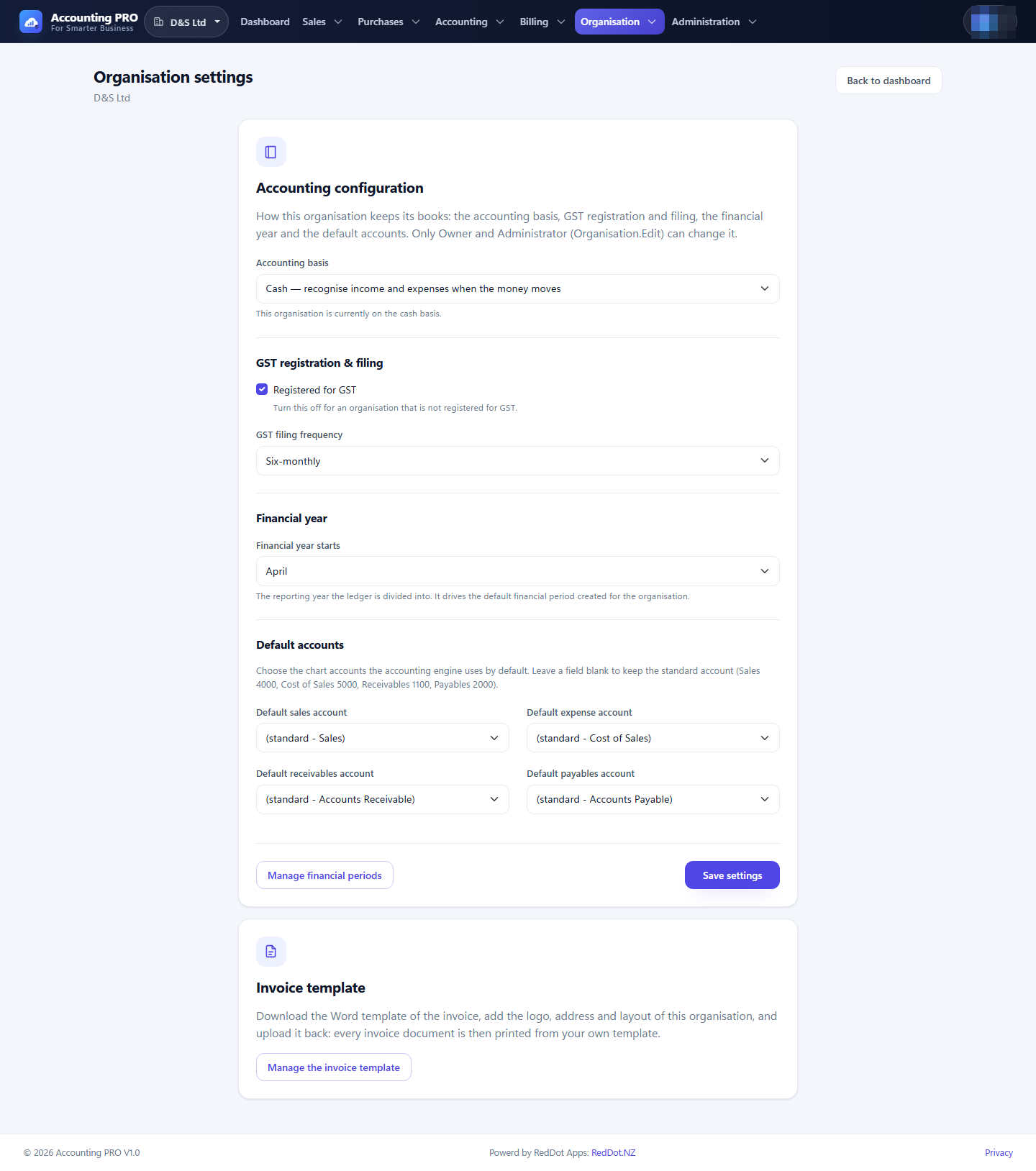
Open Organisation → Settings (permission Organisation.Edit for changes,
Organisation.View to read).
Accounting configuration
- Accounting basis — accrual or cash.
- Registered for GST — switches GST charging and claiming on or off.
- GST filing frequency — monthly, two-monthly or six-monthly.
- Financial year starts — the month that begins the financial year (April by default). This drives the default reporting period and the opening financial period.
- Default accounts — the sales, expense, receivables and payables accounts offered by default on documents.
Document numbering
Every document the organisation issues has its own numbering rule, with a
prefix, a next number, a sequence (how many digits the counter is
padded to) and whether the year is part of the number. The defaults keep the
familiar shapes: INV-2026-0001 for sales invoices, BILL-2026-0001 for
supplier bills, CRN-2026-0001 for credit notes, and PAY-, SUPPAY-, BCN-,
CN-, JE- and BT- for the general-ledger references.
- The screen shows a preview of the number the next document of each type will get.
- A number is never reused: the next document always gets one more than the highest number already used in that series. Raising the next number skips forward; lowering it below a number that is already in use has no effect.
- Prefixes must be unique inside the organisation, because every series shares the reference namespace of the general ledger.
The same screen links to the Invoice template settings.
9.2 Users, roles and invitations
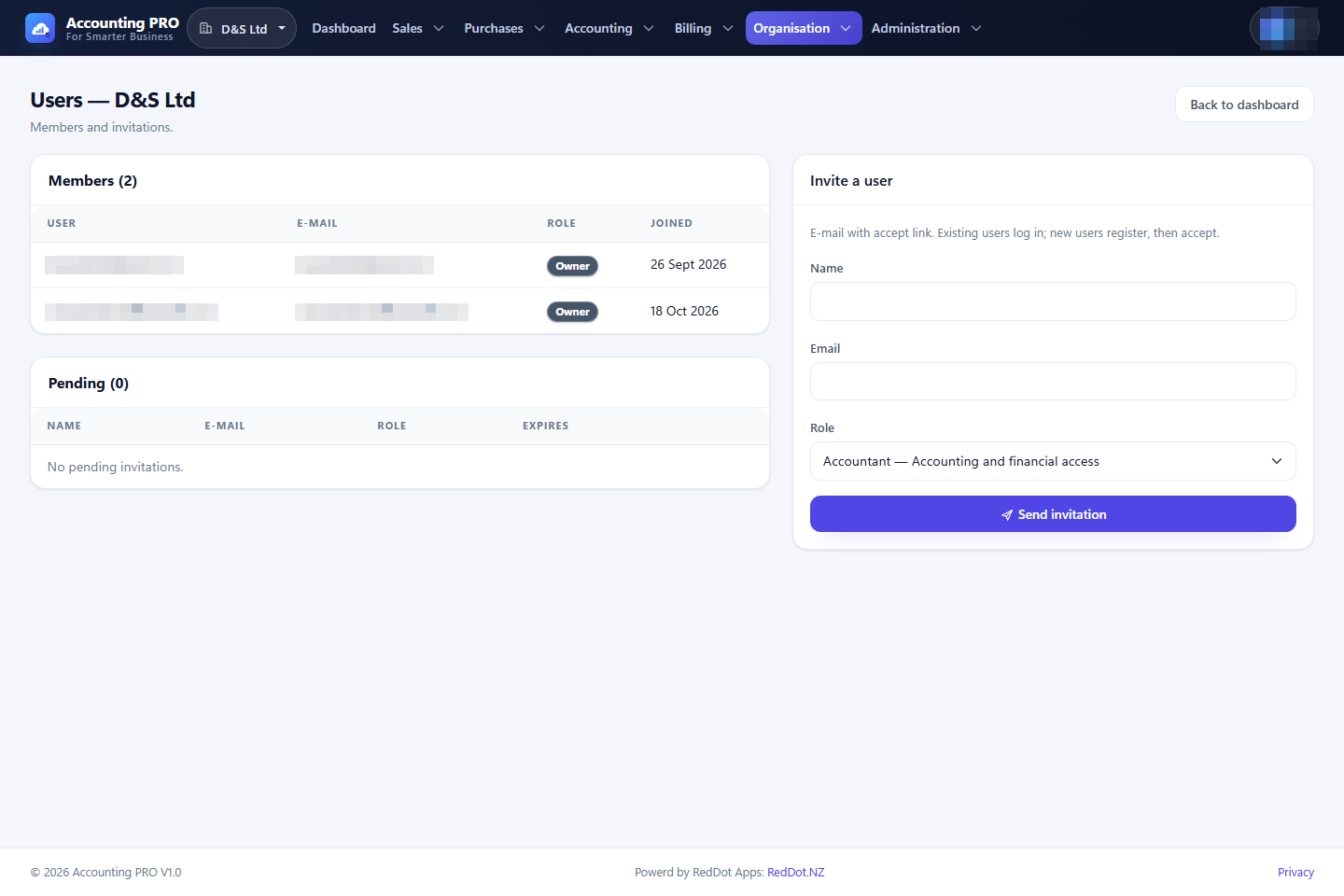
Open Organisation → Users (permission Users.View; Users.Manage to
change). Only Owner and Administrator can invite, resend or revoke.
- In Invite a user, enter the person's name, email address and role.
- Select Send invitation. The application emails a single-use link that expires automatically.
- Pending invitations can be resent or revoked.
- The recipient opens the link and accepts; the link works even when they are not yet a member of any organisation.
- Existing members are listed with their role; the Owner can always manage users.
User limit. Every plan has a maximum number of users (
MaxUsers). One active member or one pending invitation holds one seat, so Send invitation is refused — and an invitation cannot be accepted — once the plan's seats are taken. The Users screen shows the usage next to the page title (for example 2 of 5 user(s) used (1 member(s), 1 invited)) and explains the limit when it is reached; revoke a pending invitation or move to a plan with more users to free a seat. The dashboard shows a User limit reached warning as soon as the last seat is gone.
Invitations sent to you appear under Organisation → My invitations and can also be opened directly from the email.
9.3 Invoice template (Word)
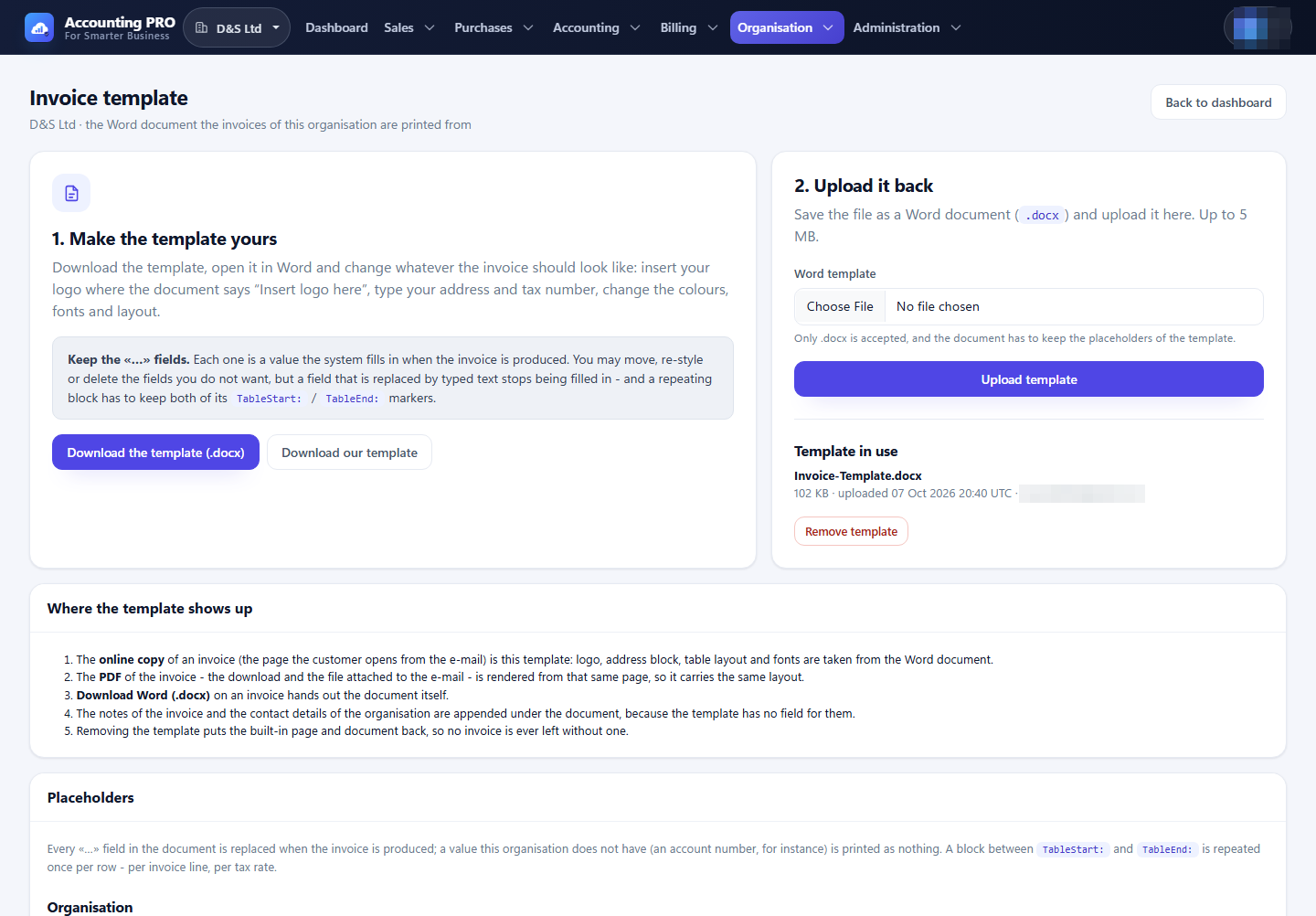
The invoice document is produced from a Word template, so the layout, logo and fonts are yours.
- Open Organisation → Invoice template (permission
Invoices.Template; Owner and Administrator only). - Select Download the template (.docx) and edit it in Word: replace the logo placeholder, type the business address and tax number, adjust colours, fonts and layout.
- Upload the edited file with Upload template. The file must be a real
.docx, no larger than 5 MB, and must still contain at least one known placeholder. - Select Remove template to fall back to the shipped document.
The uploaded template drives the online invoice, the PDF and the Word download, so all three carry the same layout. An invoice for an organisation without an upload uses the built-in document, so a customer copy is always available.
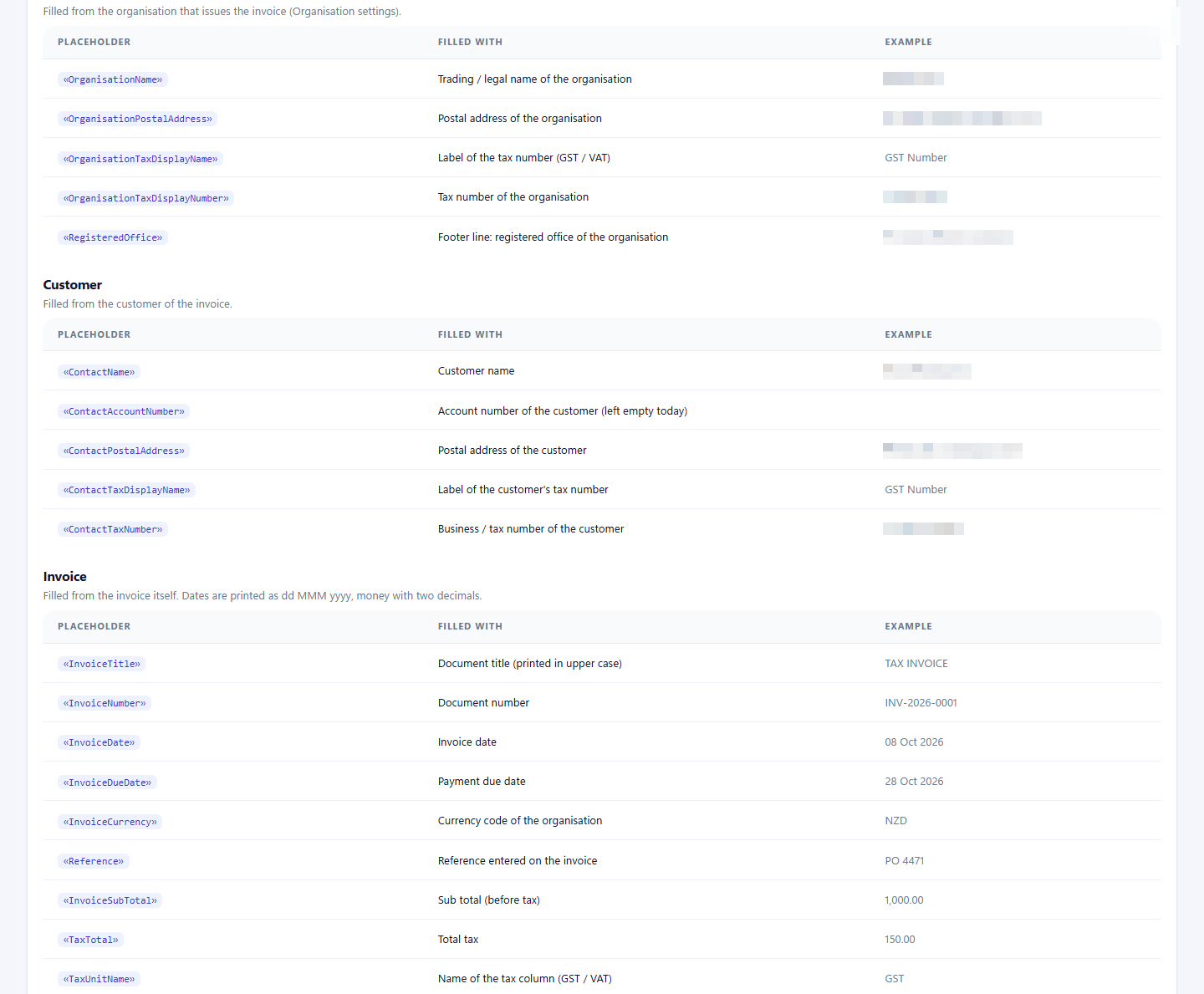
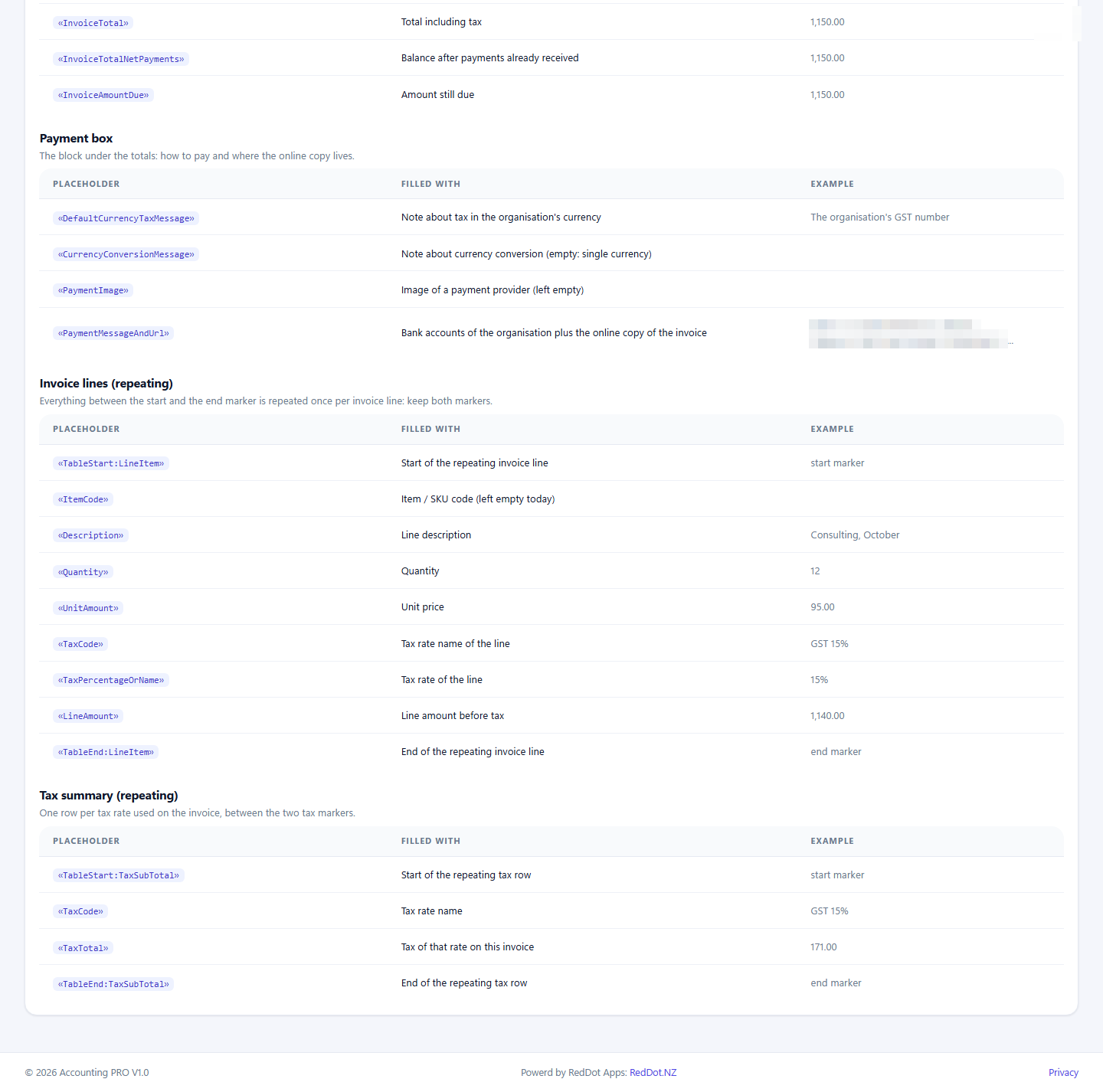
The template supports Word mail-merge fields for:
- organisation name, postal address, tax display name and number;
- customer name, account number, postal address and tax details;
- invoice title, number, dates, currency, reference, subtotal, tax, total, payments and amount due;
- a repeating LineItem region (item code, description, quantity, unit amount, tax code, tax percentage/name, line amount);
- a repeating TaxSubTotal region (tax code and tax total).
9.4 Import data (migration wizard)
The import wizard brings the data of another accounting package or a spreadsheet across in two phases: first the master data the ledger is built from, then what the ledger starts from.
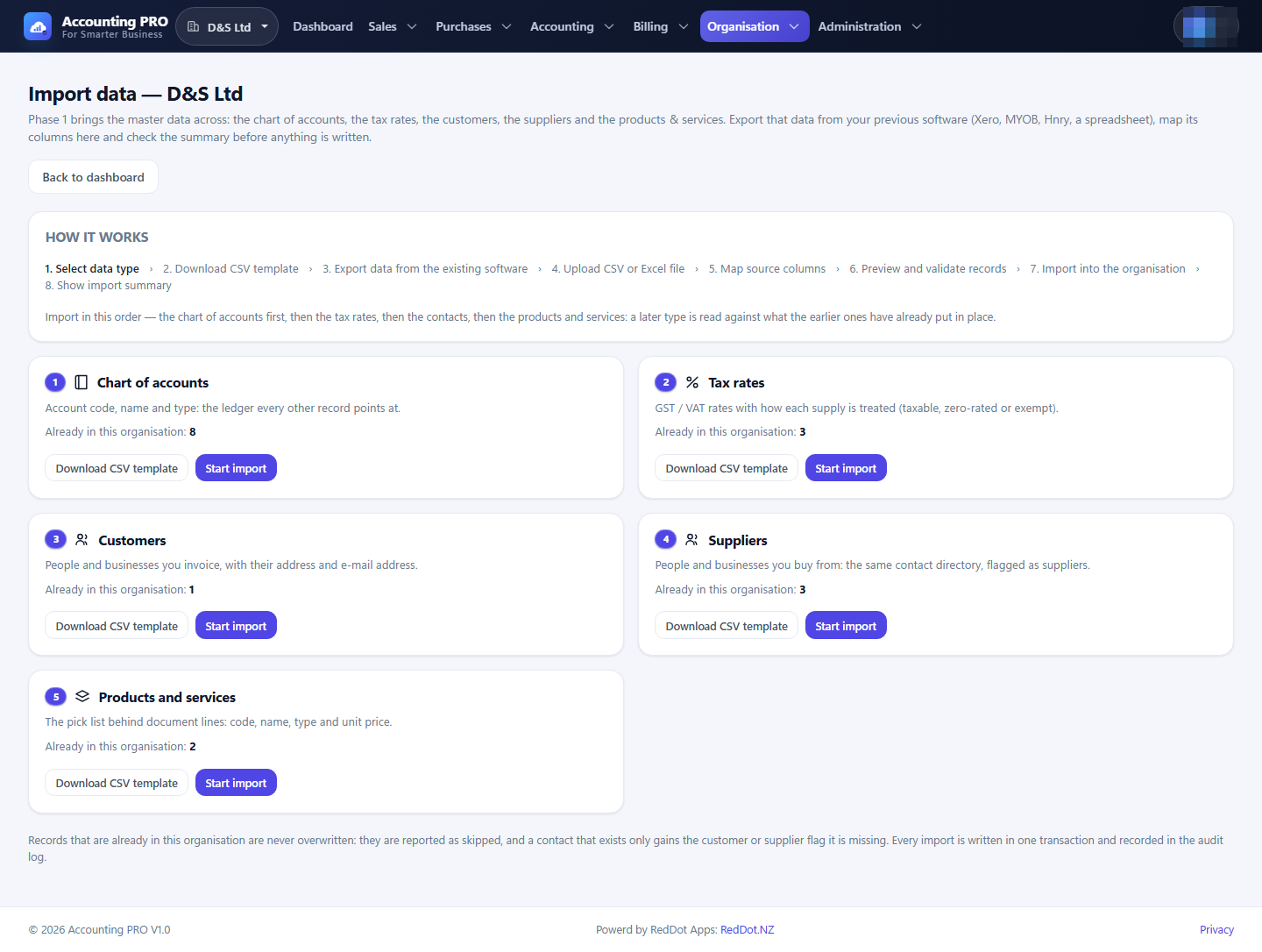
Phase 1 — master data. Supported data types, in the order they should be imported:
- Chart of accounts — code, name and type.
- Tax rates — rate and GST treatment.
- Customers — name, address and email.
- Suppliers — the same contact directory, flagged as suppliers.
- Products and services — code, name, type and price.
Phase 2 — balances and history. Each of these is read against what phase 1 has already put in place:
- Opening balances — the balances the ledger opens with (bank, accounts receivable, accounts payable, GST and equity): one row per account, with a debit or a credit. The file has to balance, and it is written as one opening balance journal entry dated the date the file carries (today when it carries none). An organisation opens its books once, so the wizard refuses a second opening balance, and it refuses a file that names an account the ledger already carries a balance for — the balance is already represented by an imported document or journal, and posting it again would count the same money twice. Leave those accounts out of the file (move their amount to the equity line so it still balances) and import the aged documents instead. If the balances are wrong, reverse the opening-balance entry in the general ledger first, then import the corrected file.
- Aged invoices — the customer invoices still owing at the cut-over date, with their own number, dates and outstanding amount. Each row becomes the invoice, its line and its journal entry (debit receivables, credit sales and GST), so the aged receivables and the customer statements match the old system.
- Aged bills — the supplier bills still owing: the mirror of the aged invoices (debit the expense and the tax, credit payables).
- Credit notes — the credit notes still open on customer accounts (returns, discounts, adjustments), which reduce what the customer owes.
- Historical journals — the ledger journals from before the cut-over (accruals, depreciation, adjustments, brought-forward entries). One row is one line: every row that carries the same reference is one entry, and that entry has to balance.
A ledger type is validated as a whole before anything is written:
- the opening balances and every historical journal have to balance (an unbalanced file is refused with the difference it is out by);
- a document number has to be free both as a document number and as a ledger reference, so a document that is already posted is skipped rather than duplicated;
- the contact a document names has to exist and carry the right flag (a customer for an invoice or a credit note, a supplier for a bill);
- a date inside a closed financial period is refused, exactly as it is for a document entered by hand;
- the control accounts a document posts through (receivables, payables, GST, sales and the default expense account) have to exist in the chart of accounts.
The flow is:
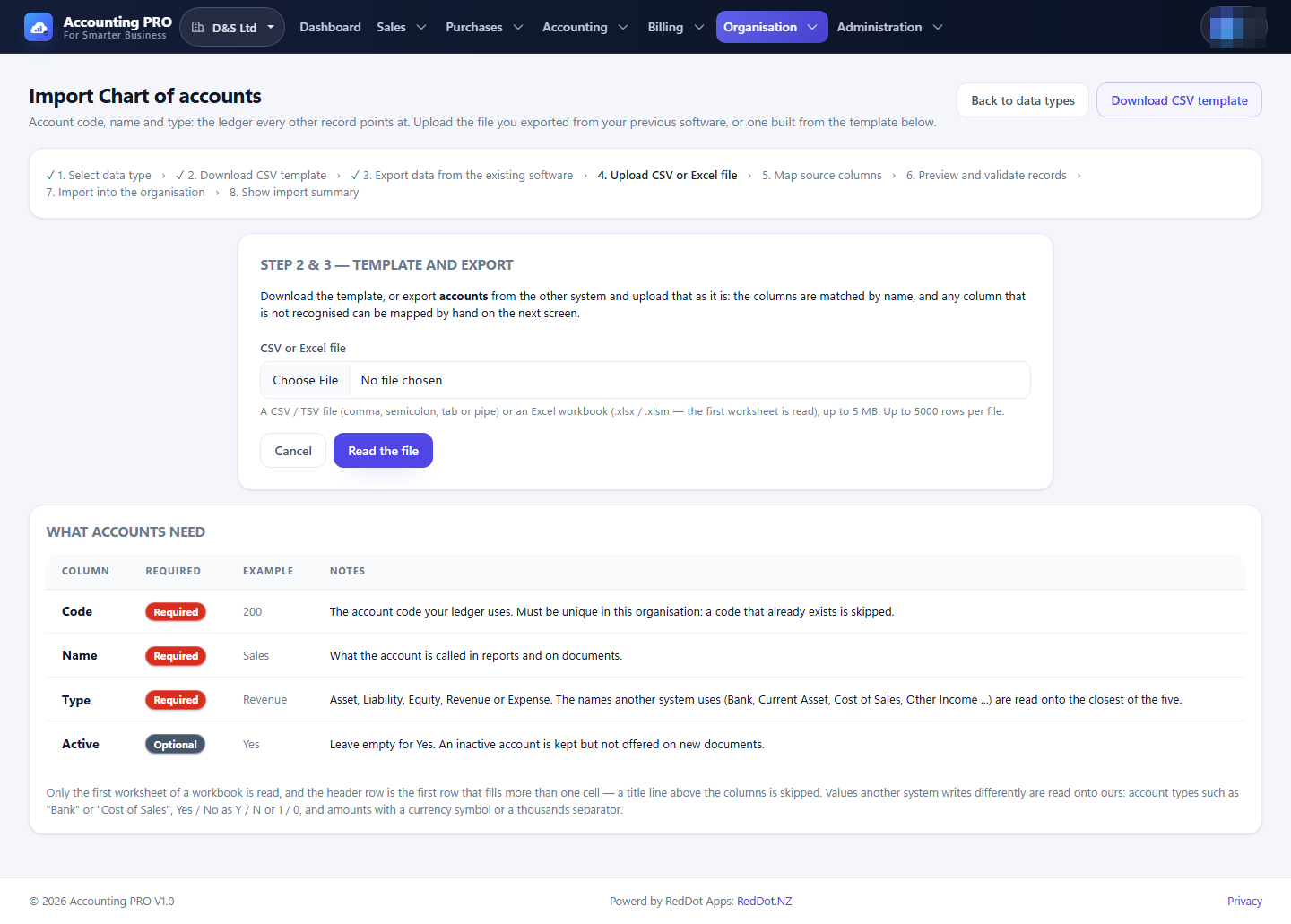
- Choose the data type and download its CSV template.
- Upload a CSV or Excel export.
- Map the columns in the file to the application's fields.
- Preview and validate the rows. Invalid rows are listed with the reason.
- Import the valid rows, or download the error report and fix the file.
The whole file is written in one transaction, each imported record is written together with its journal entry, and every import is recorded in the audit log.
The wizard requires the Data.Import permission — Owner and Administrator (and
the global administrator onboarding the organisation).
9.5 Organisations and switching
- Organisation → Switch organisation lists every organisation you belong to.
- Create new adds another organisation to the same login; you become its Owner and choose a plan for it next.
- Each organisation has its own chart of accounts, tax rates, contacts, documents, bank accounts and members. Data never crosses between them.