5. Purchases and accounts payable
The Purchases menu mirrors the sales cycle on the supplier side.
5.1 Supplier bills
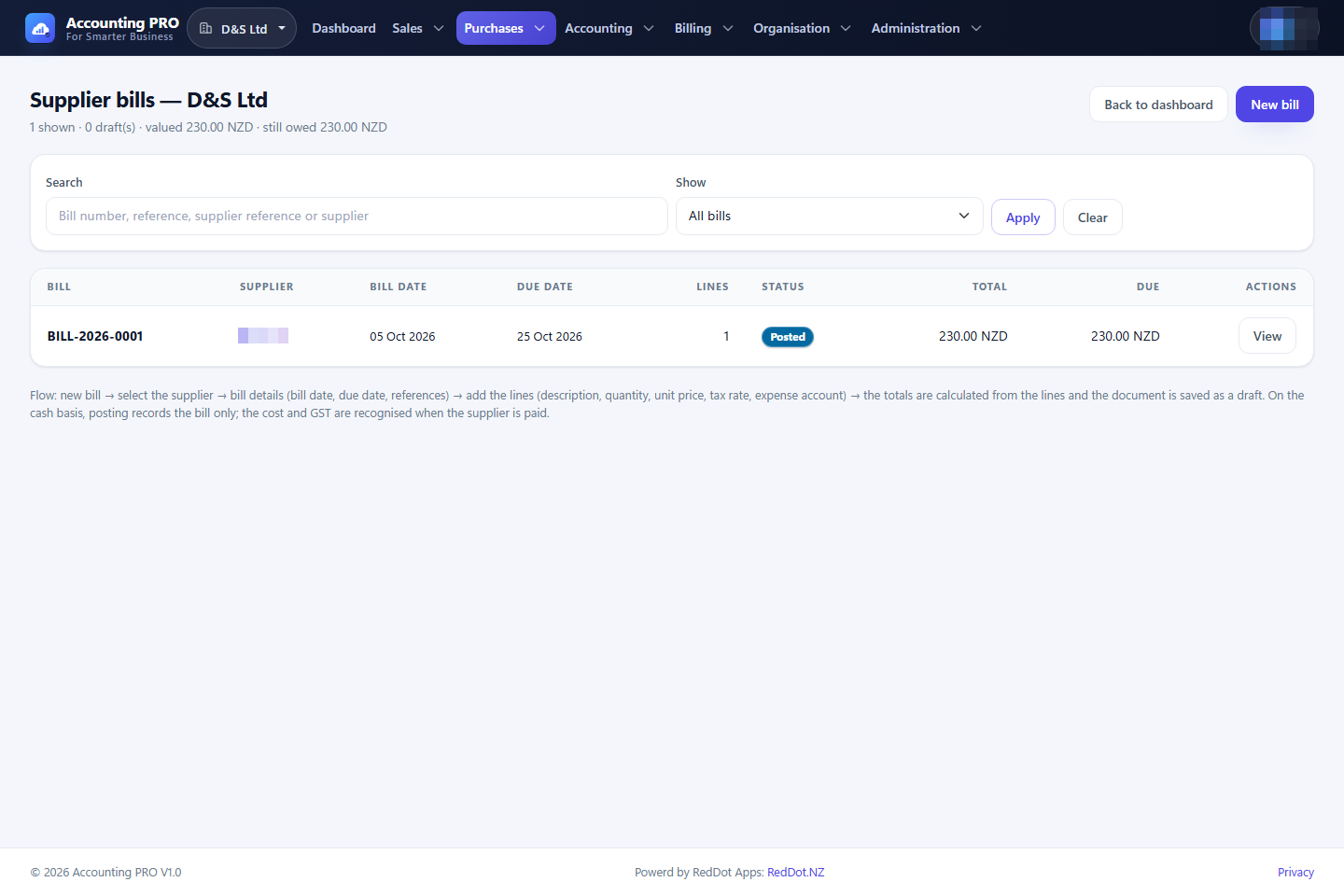
A supplier bill is a draft document that becomes a liability when it is posted. On an accrual-basis organisation the posting debits the expense (and GST) and credits Accounts Payable.
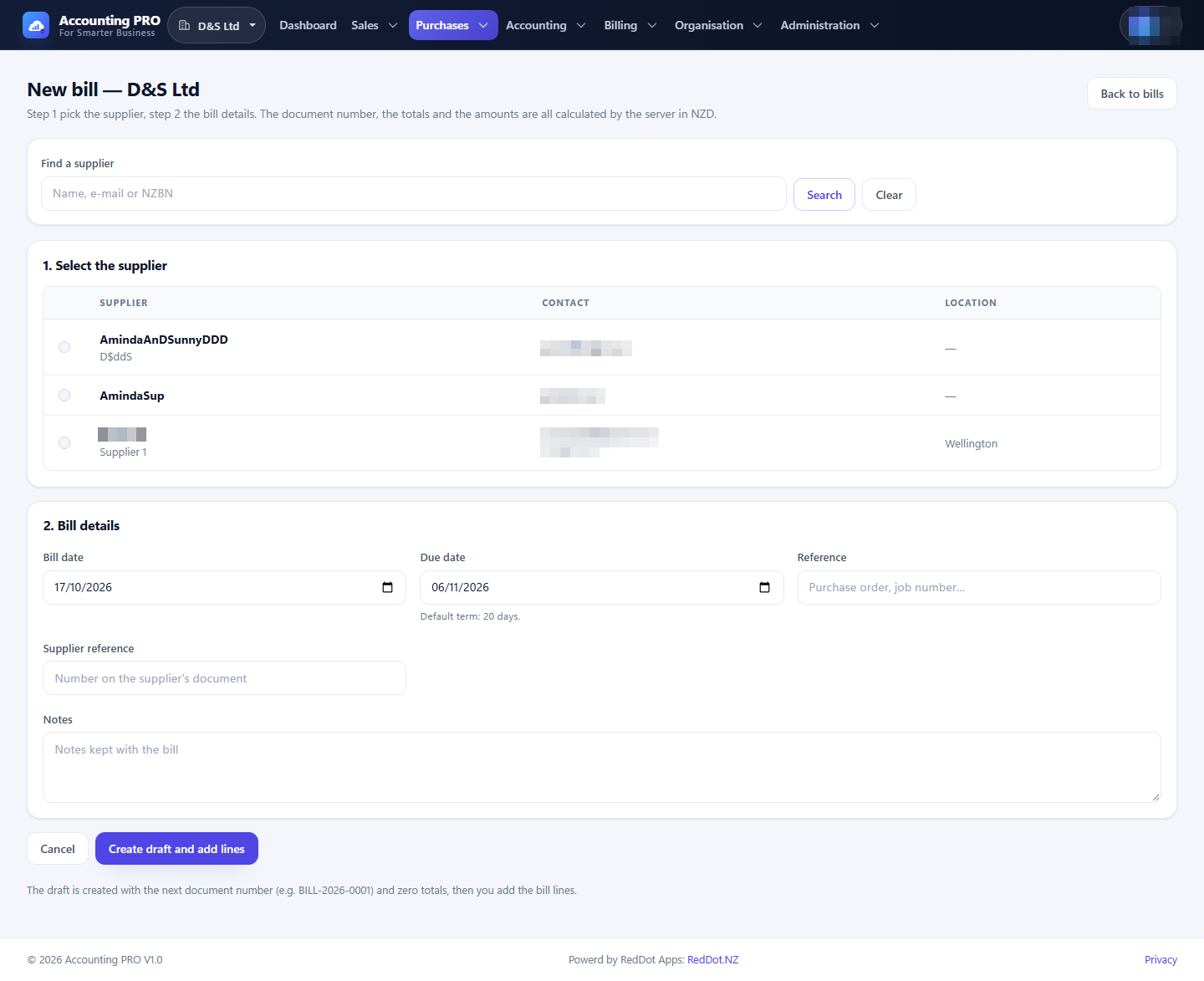
- Open Purchases → Supplier bills and select New bill.
- Find and select the supplier.
- Enter the bill date, due date, reference, supplier reference and optional notes.
- Select Create draft and add lines. The server allocates the next bill
number (for example
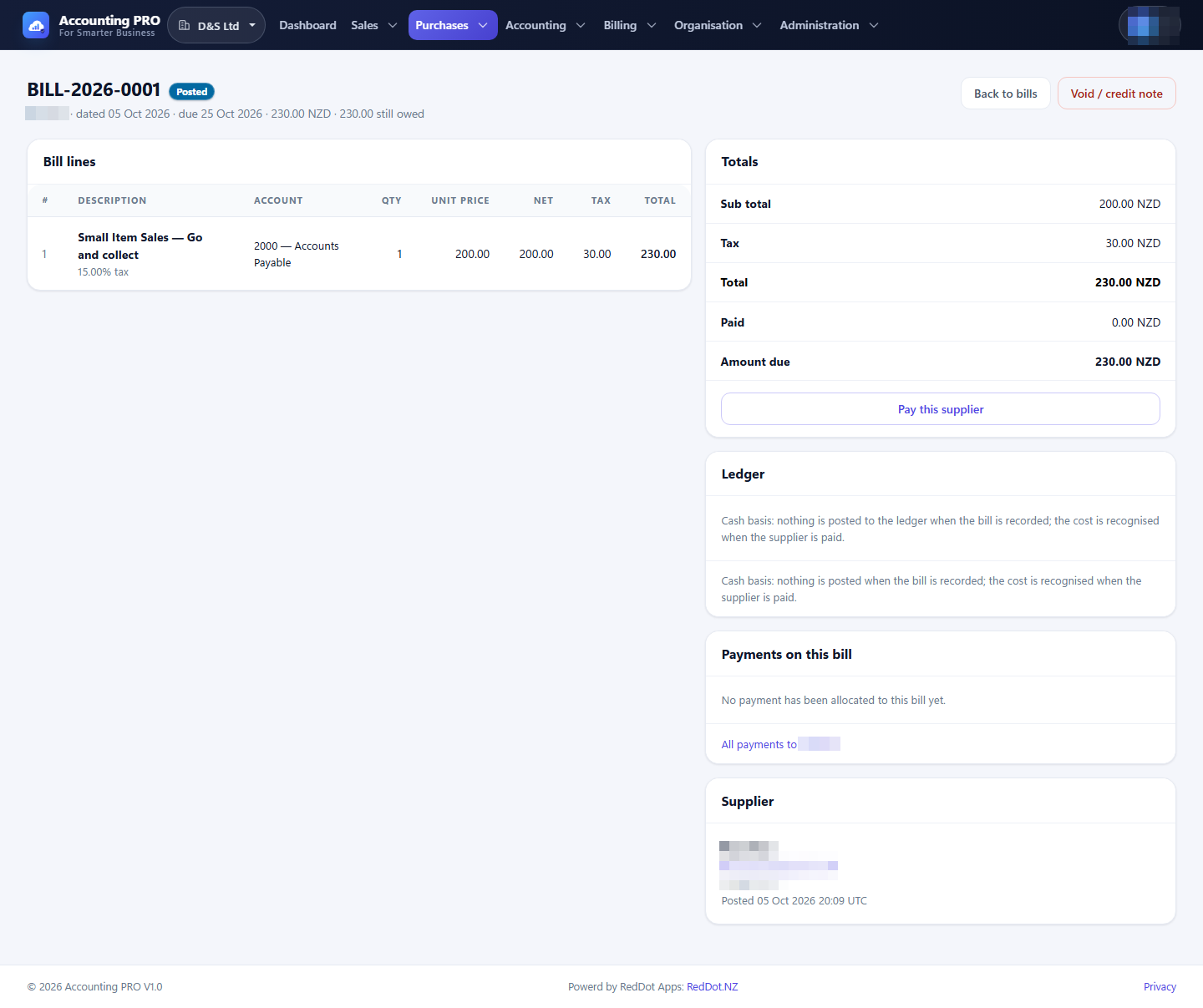
BILL-2026-0001). - Add lines with a description, quantity, unit price, tax rate and the expense or asset account to debit.
- Validate the bill to preview the posting, then Post it.
- If a posted bill is wrong, Void it. This creates a reversing supplier credit note; the bill is never edited.
Bill statuses are Draft, Posted, Partially paid, Paid, Overdue and Cancelled. Supplier payments reduce the amount due and move the bill through the paid states.
5.2 Supplier payments
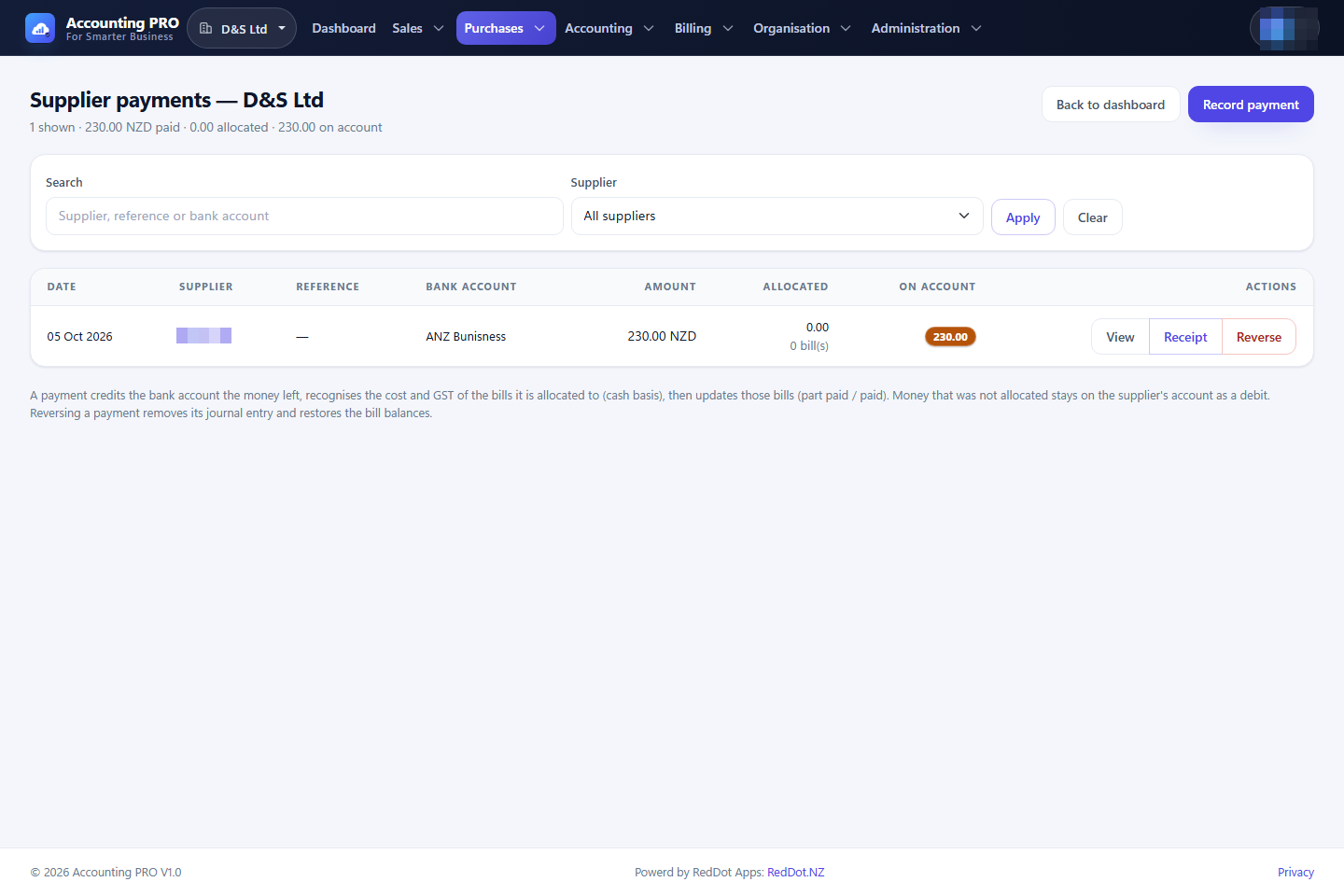
- Open Purchases → Supplier payments and select New payment.
- Choose the supplier and the bank account the money left.
- Enter the payment date, amount, reference and optional notes.
- Allocate the payment to one or more open bills.
- Select Record payment.
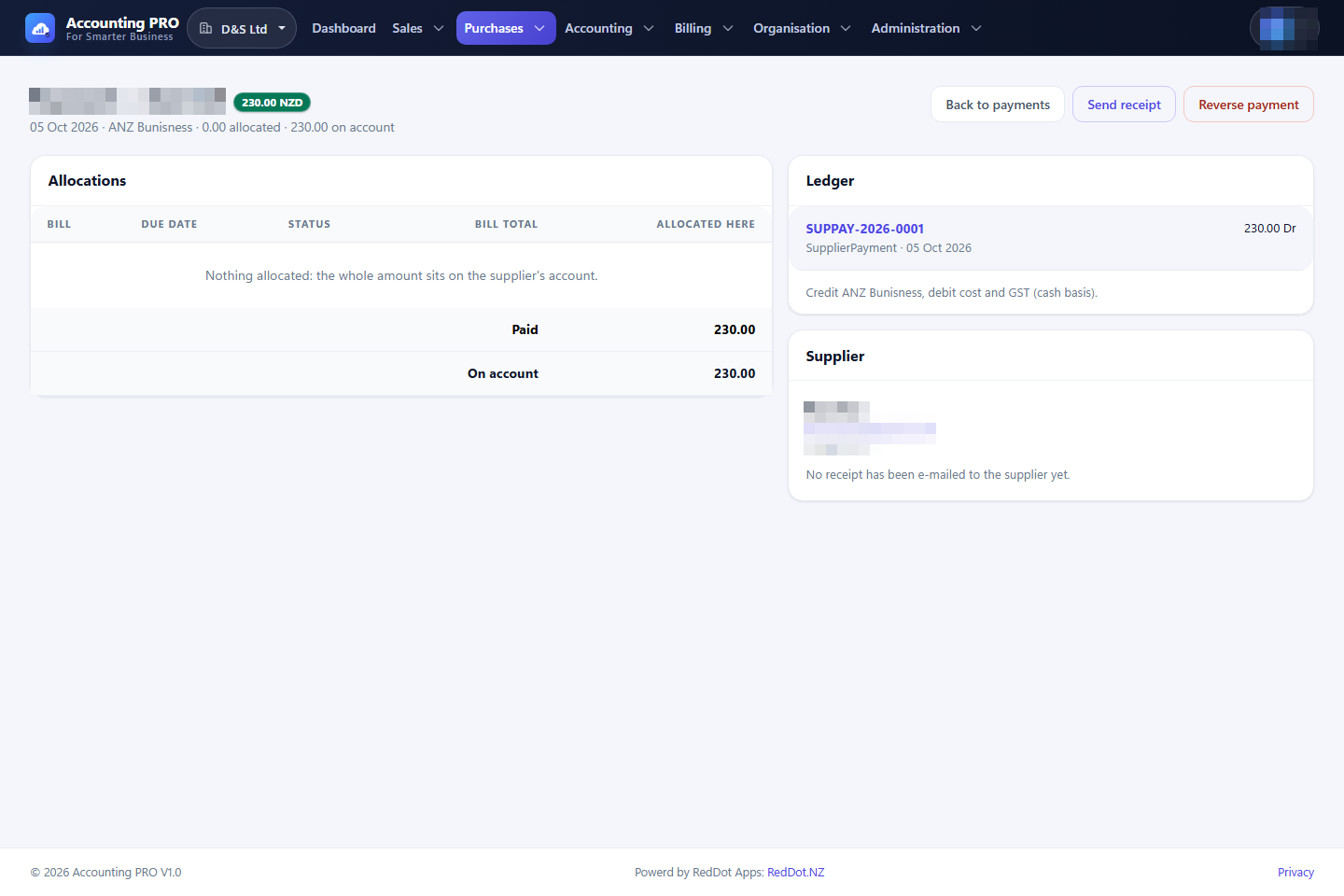
- Open the recorded payment and use Send receipt to email the supplier a payment receipt. The receipt email uses the organisation's branding.
Deleting a supplier payment reverses its journal entry and restores the bill balances.
5.3 Supplier credit notes and refunds
A supplier credit note is the payables mirror of a customer credit note: money a supplier gives back, because goods went back to them, because they granted a settlement discount, because a bill was wrong or because the organisation overpaid them. A posted bill is never edited, so the correction travels the other way round.
- Open Purchases → Supplier credit notes and select New supplier credit note.
- Select the supplier. The form then offers the bills that have reached the ledger, so the credit can be tied to the document it corrects (or left on the supplier's account).
- Enter the credit note date, the reason (goods returned, discount, incorrect bill, overpayment, adjustment, other), the reference, the supplier's own number and optional notes.
- Choose what should happen to the credit:
- Leave it on the supplier's account — it reduces what is owed to them.
- The supplier hands the money back — the credit is settled later with a refund into one of the organisation's bank accounts.
- Select Create draft and add lines, then add the credited lines (quantity, unit price, tax rate and the account the cost was charged to).
- Review and post the credit note. Posting debits Accounts Payable and credits the cost accounts and GST, and the supplier's balance drops by the credit.
When the money comes back, open the posted credit note and select Record the refund: choose the bank account and the date. The refund is recorded in full, debits the bank account and credits Accounts Payable, so the supplier's account goes back to zero.
A posted credit note is never edited. Reverse writes the mirror entries (and the mirror of the refund when the money already came back) and moves the document to Cancelled. The register can be filtered to Awaiting refund to see the credits the suppliers still have to hand back.
Only unrefunded credit notes reduce what is owed, so the payables reports, the supplier statement and the GST return all agree with the ledger: a credit note takes money off the supplier's account, and a refund puts it back on.
5.4 Accounts payable reporting
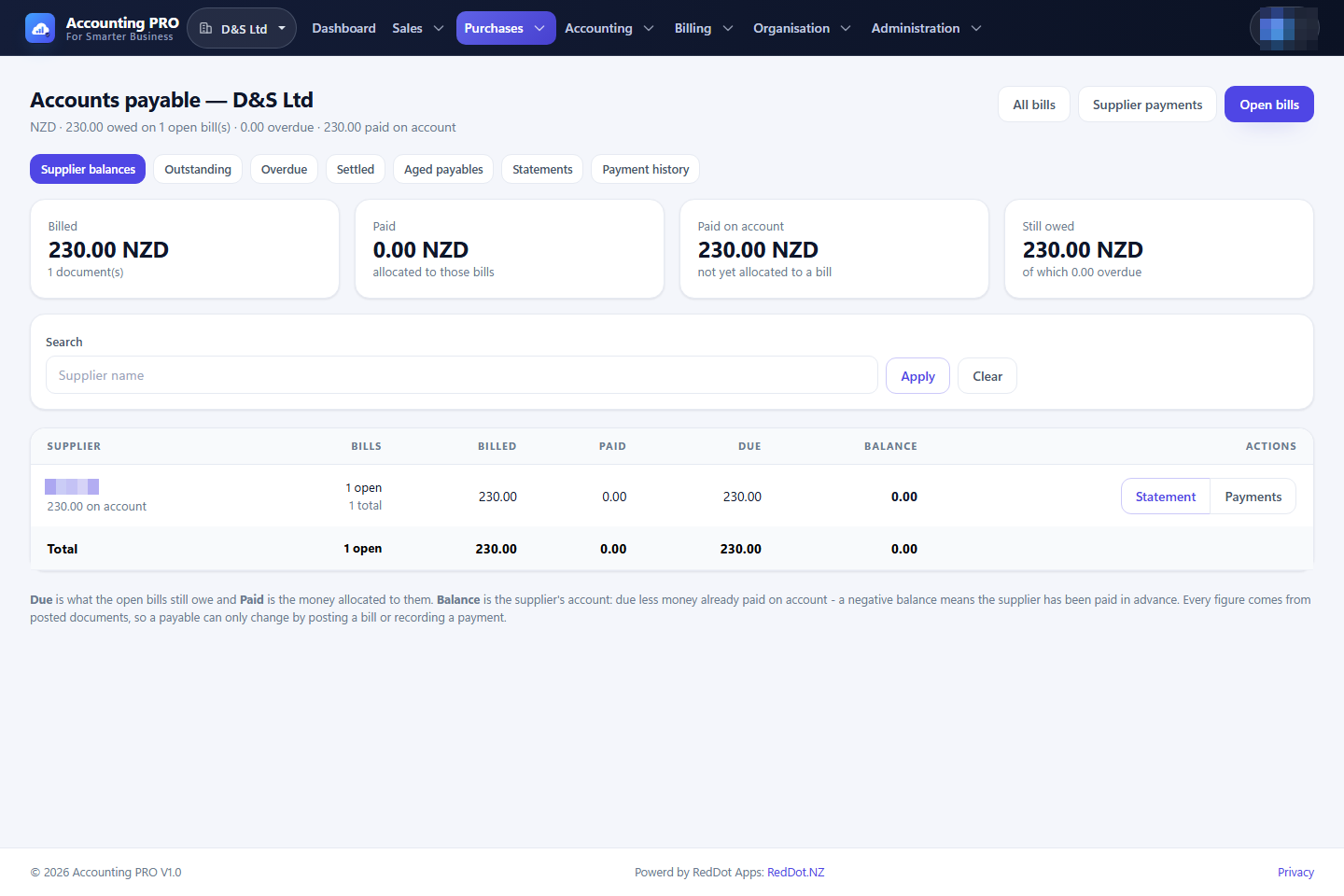
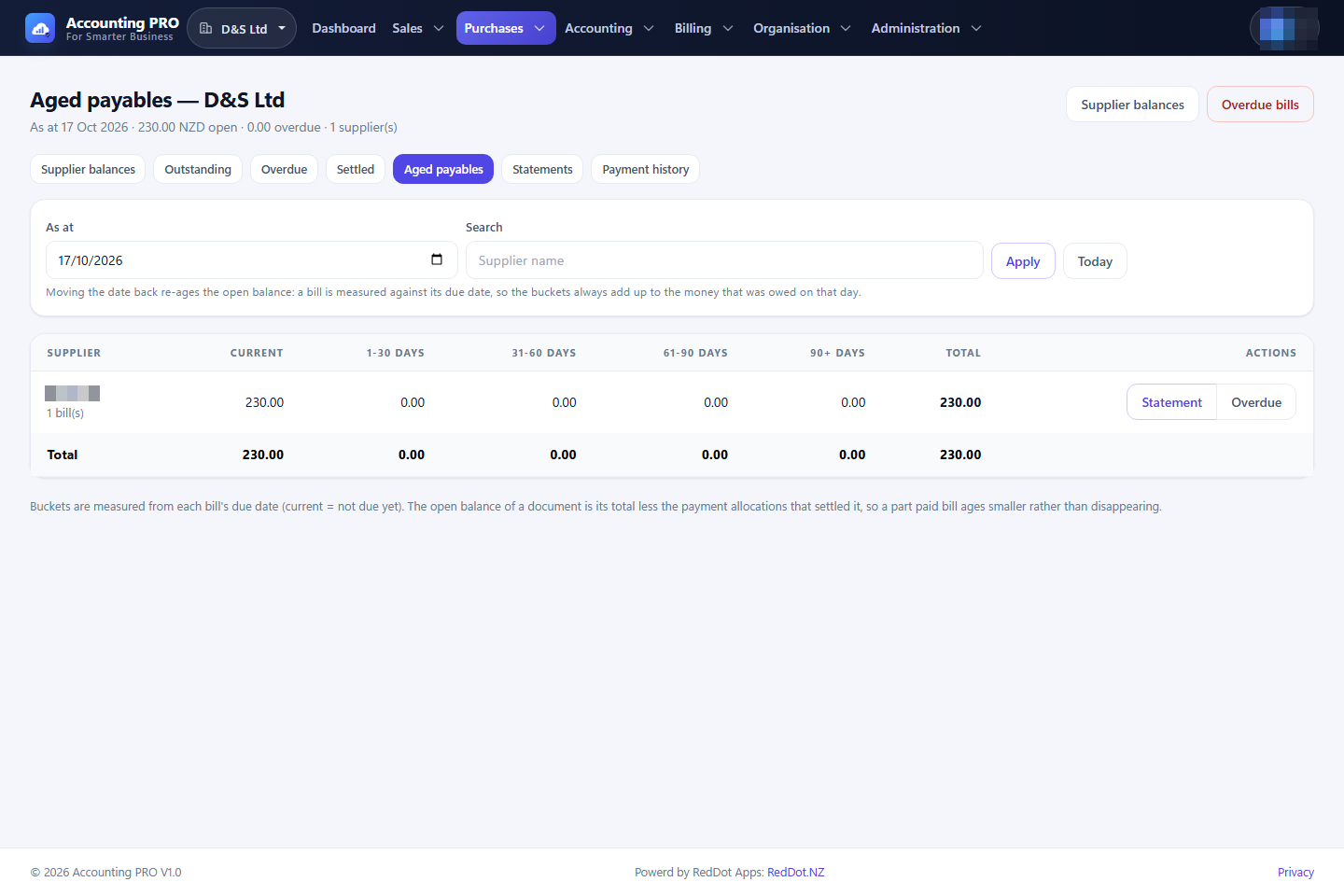
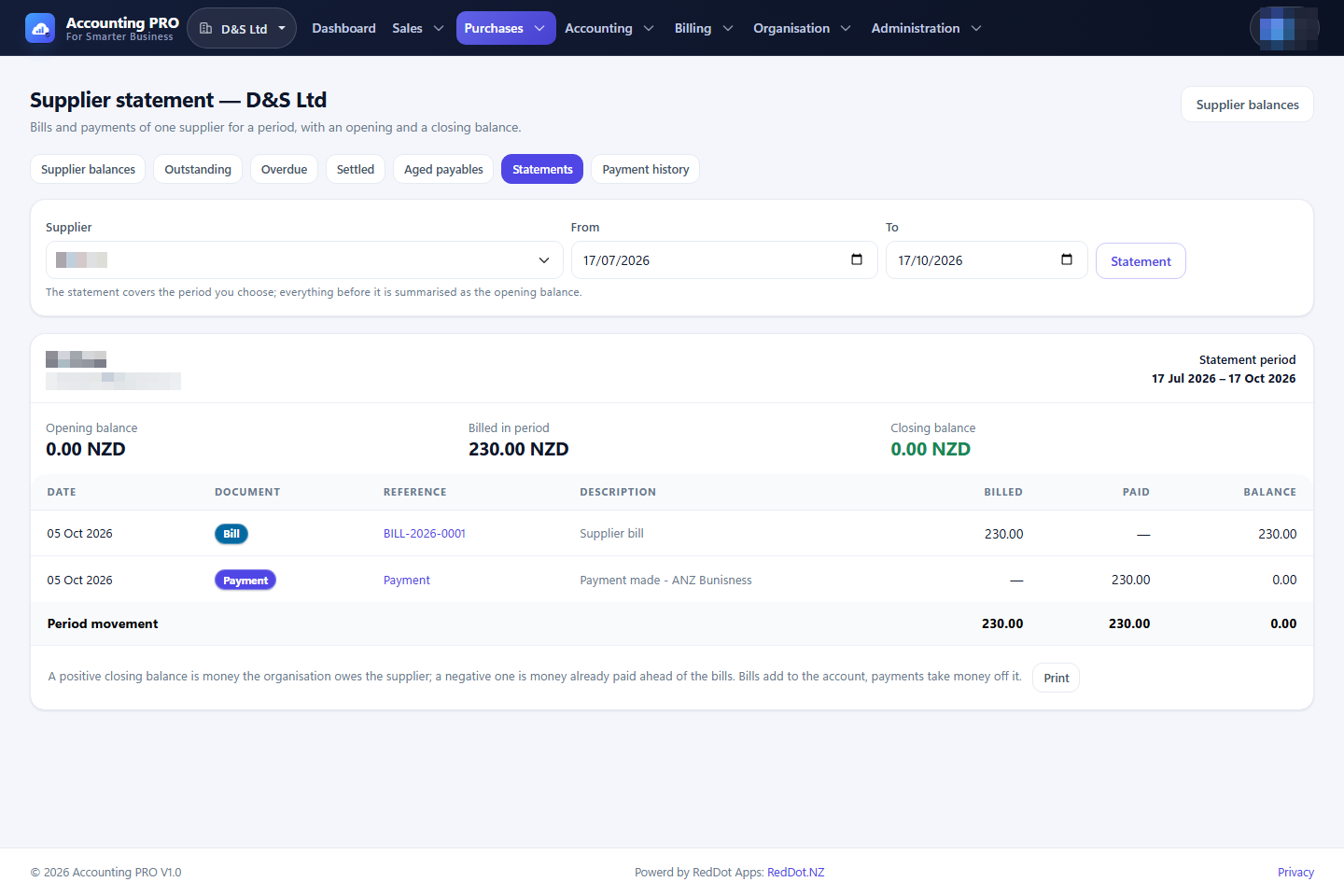
Purchases → Payables provides the supplier-position hub:
- Summary — what was billed, paid and is still owed per supplier.
- Outstanding, Overdue, Paid and All — bill-level detail.
- Aged — current to 90+ day buckets as at a chosen date.
- Statement — a supplier statement for a date range.
- Payments — supplier payment history.
As with receivables, only posted documents count, so the reports reconcile to the ledger.