
3. The dashboard and navigation
The top bar is the main navigation. Each group is a drop-down menu, and only the modules your role can open are shown.
| Menu | Contents |
|---|---|
| Dashboard | Organisation overview and shortcuts |
| Sales | Invoices, credit notes, receivables, customer payments, contacts, products & services |
| Purchases | Supplier bills, supplier credit notes, supplier payments, payables |
| Accounting | Chart of accounts, financial periods, general ledger, reports, bank accounts, bank transactions, reconciliation, tax rates, GST returns |
| Billing | My subscription, plans & pricing |
| Organisation | Users, settings, document numbering, invoice template, import data, switch organisation, my invitations |
| Administration | Account templates, plans & features, all subscriptions (global administrators only) |
The right-hand side of the bar holds the organisation selector and your account menu. The left side of the page header offers the actions relevant to the screen — for example New invoice, Users & invitations or Manage for the subscription.
3.1 What the dashboard shows
- The organisation name, currency and your role.
- The current plan, whether it is a trial, and the renewal/end date.
- Module tiles for Sales, Purchases and Accounting, each with shortcuts.
- The features included in your plan.
- A reminder that you can switch or create organisations.
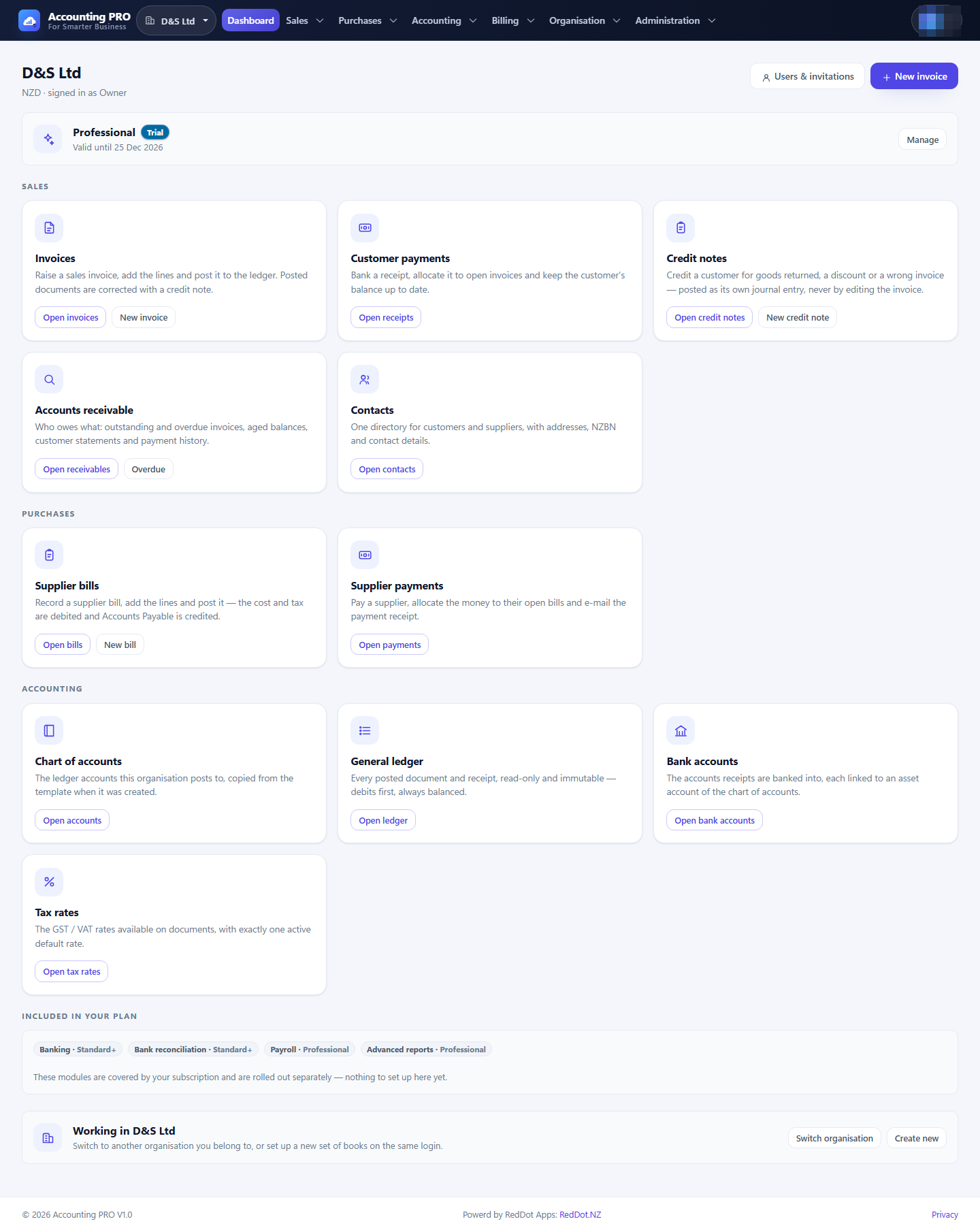
Tip: The dashboard is the quickest way to move between modules. Every tile opens the module's main register, and most tiles include a second shortcut such as New invoice or Overdue.